
Managing Timesheets in Knockio
Learn how to clock in, track work sessions, and manage timesheets in Knockio.
Table of Contents
- Overview
- Accessing the Timesheet Module
- Clocking In
- Tracking Your Work Session
- Clocking Out
- Understanding Time Entry Statuses
- Viewing Your Timesheet
- Viewing Team Timesheets
- Daily View
- Weekly View
- Monthly View
- Viewing Shift Details
- Correcting a Time Entry
- Timesheet Permissions
- Clock-In Requirement
- Managing Missed Clock-Outs
- Next Steps
Overview
The Timesheet module allows users to record and track the time they spend working. Users can clock in when they start work, track their active session, clock out when they finish, and review their recorded time entries.
Authorized managers and admins can also review team working hours and correct time entries when needed.
This article explains how to clock in and out, review recorded hours, manage team timesheets, and correct time entries in Knockio.
Accessing the Timesheet Module
To access Timesheet:
Select Timesheet from the left-hand navigation menu.
The Timesheet page provides an overview of working time by user. It can display total, idle, and active time and allows you to select a date range or review the timesheet matrix.
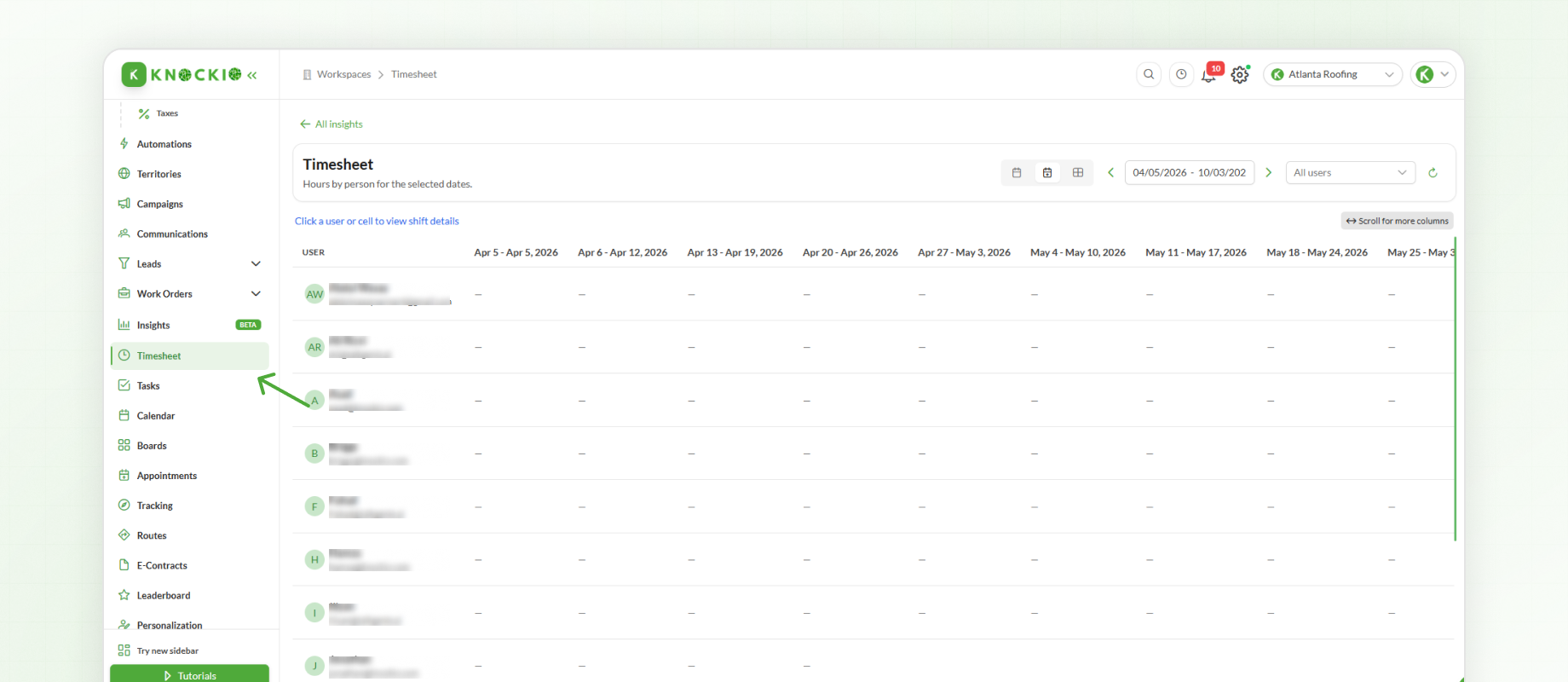
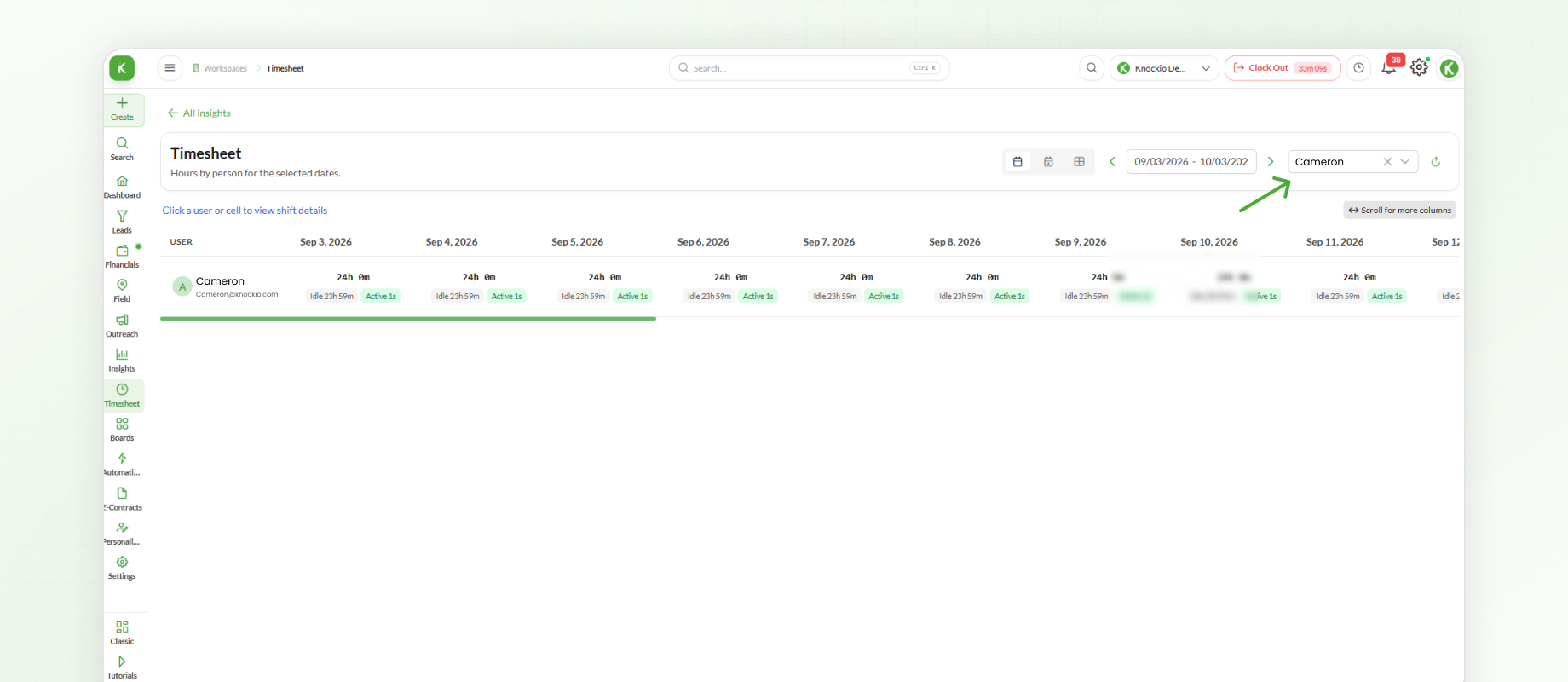
You can also filter the view by team members using the available user filter.
Clocking In
When you are ready to start working, click Clock In.
This starts an active work session for your user. Knockio then begins tracking the time spent in that session.
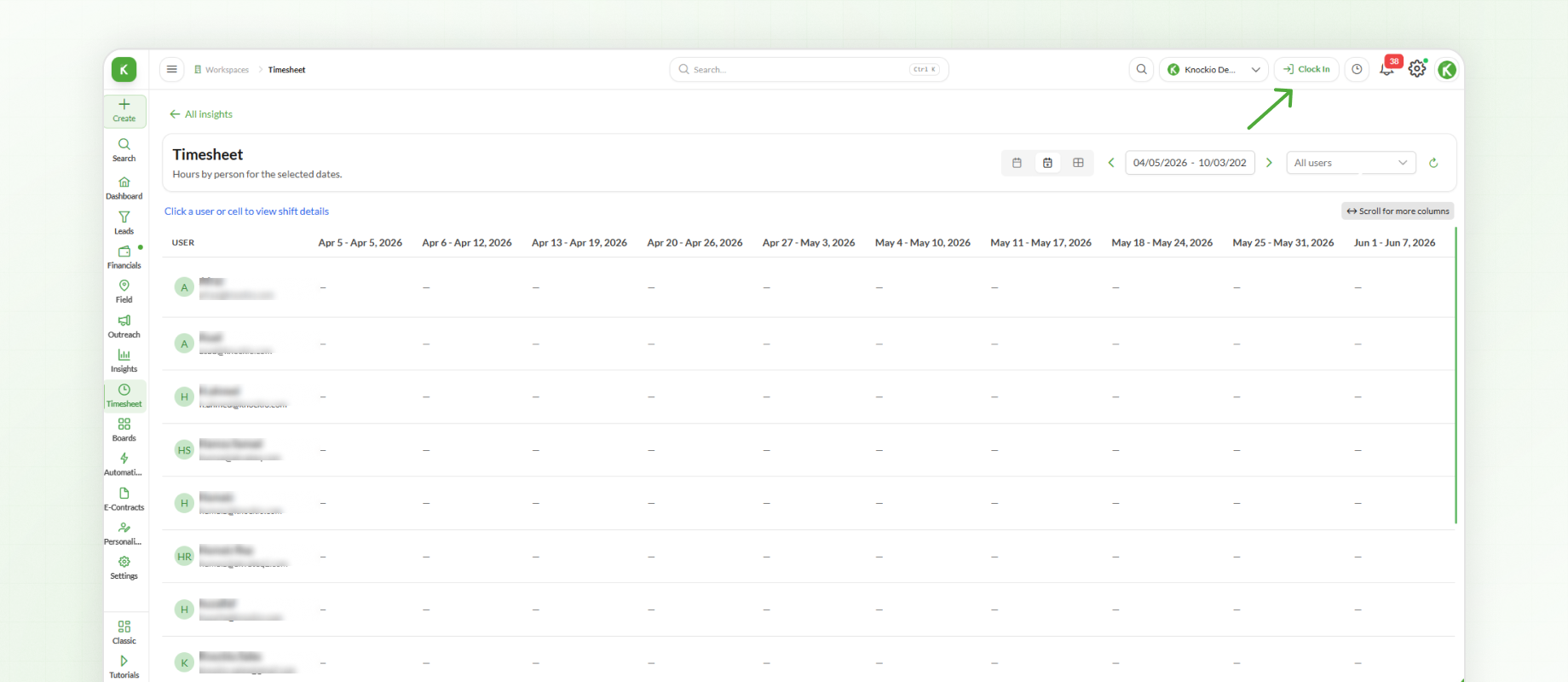
A user can only have one active work session at a time, so you cannot start another session while an existing session is still open.
For example, if you clock in at 9:05 AM, Knockio records 9:05 AM as the start of the work session and begins tracking the elapsed time.
Tracking Your Work Session
While you are clocked in, Timesheet can show information about your current work session, including:
Session Start Time
Elapsed Minutes
Total Time Worked Today
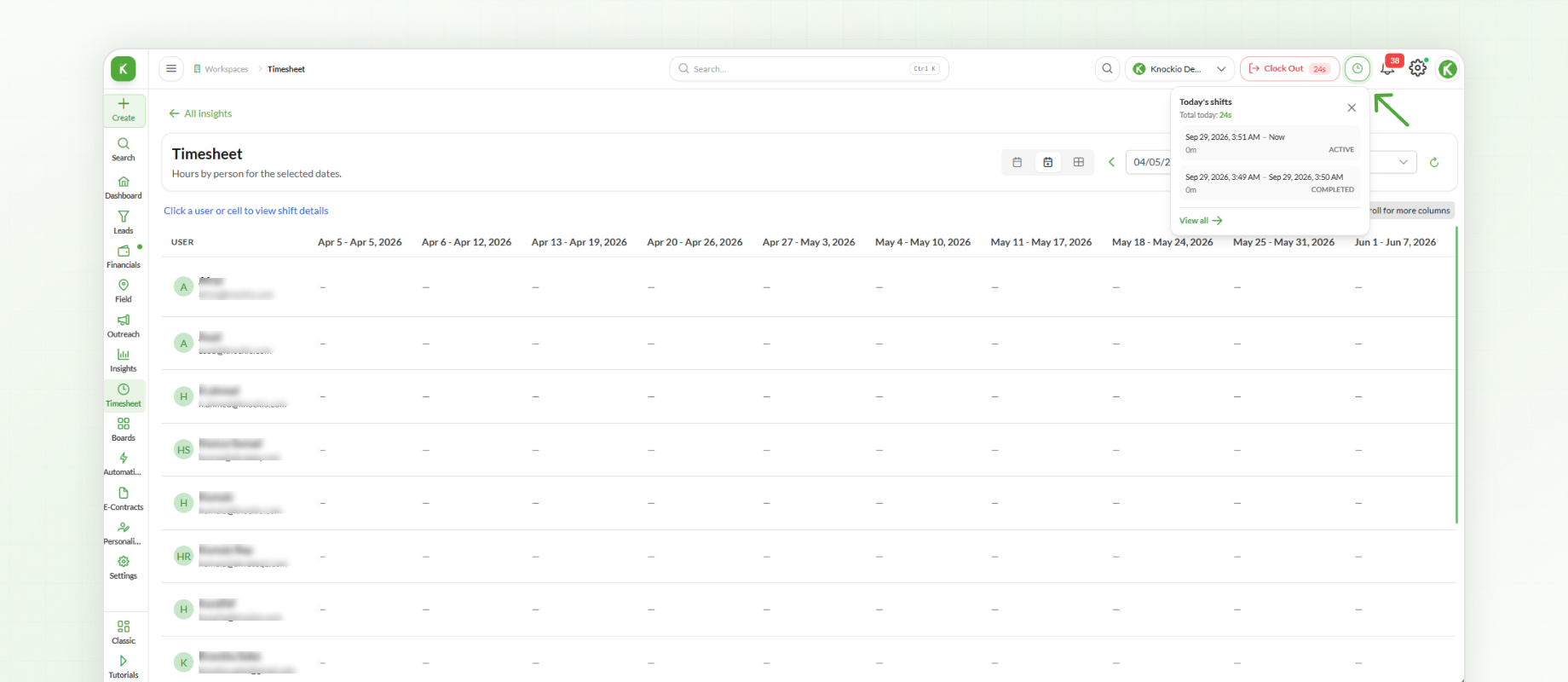
This allows you to check your current working time without ending the active session.
Clocking Out
When you finish working, click Clock Out.
Knockio closes the active session and records the duration of the work session.
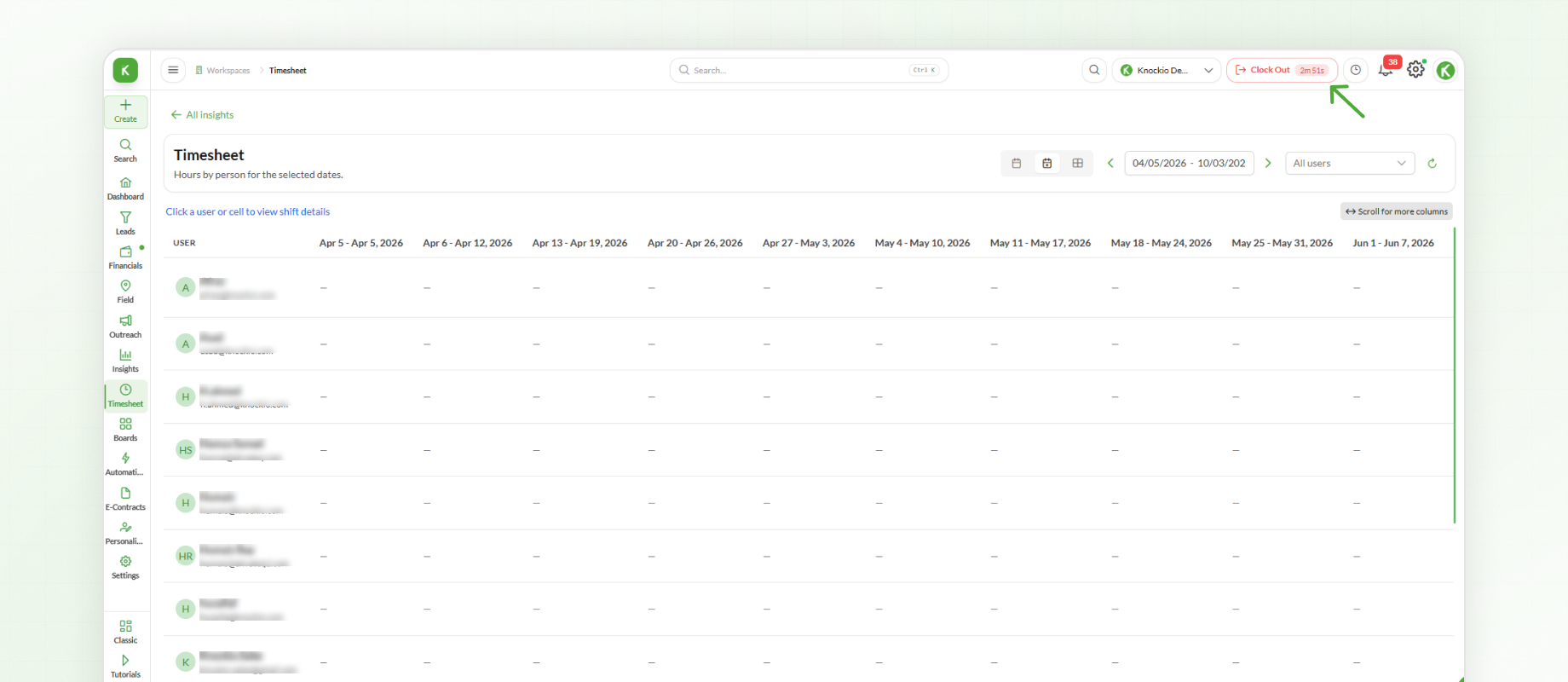
For example, if you clock in at 9:05 AM and clock out at 5:10 PM, the resulting time entry includes the clock-in time, clock-out time, work date, and recorded duration.
The basic workflow is:
Clock In → Work → Clock Out → Review Hours
Understanding Time Entry Statuses
Each entry has a status that indicates its current state.
Open – The user is currently clocked in and the session is still running.
Closed – The user has clocked out and the session has ended.
Auto Closed – The session has been automatically closed.
Viewing Your Timesheet
Users with Timesheet access can review their own recorded sessions.
A time entry can include:
Clock-In Time
Clock-Out Time
Work Date
Duration
User
Session Status
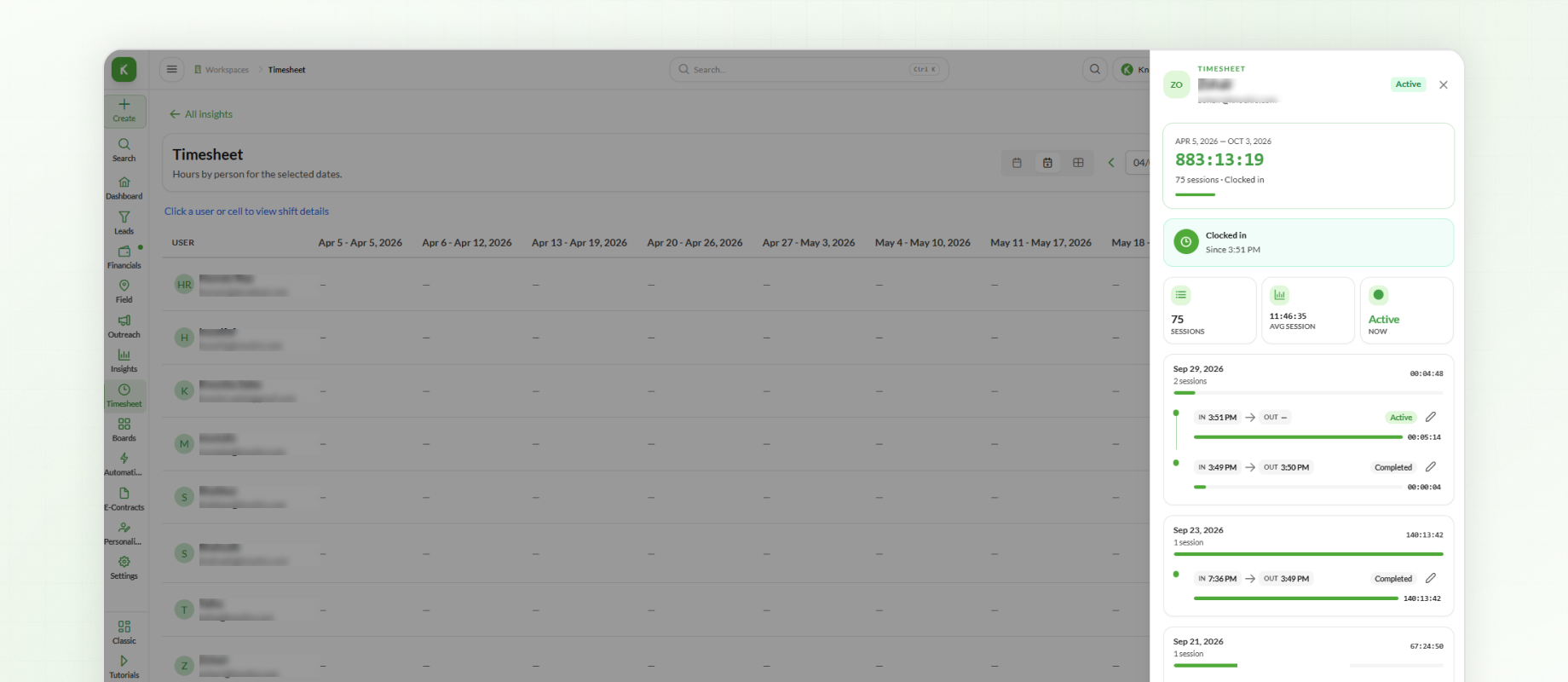
This makes it easy to review the time recorded for your work sessions.
Viewing Team Timesheets
Authorized managers and admins can also review team timesheets.
The team view can display:
Team members
Selected time periods
Total worked hours
Number of sessions
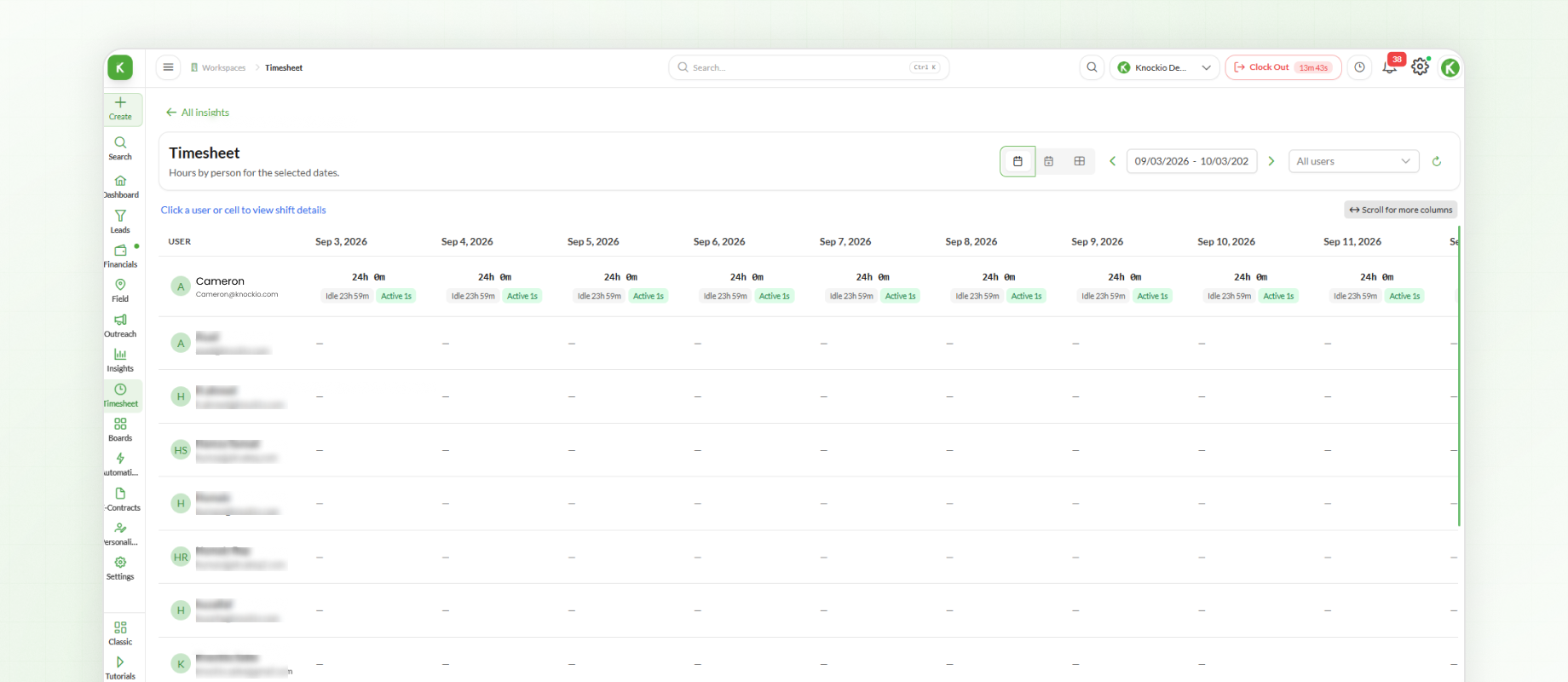
When the appropriate permission is available, team members can also be filtered to review specific users.
The Timesheet view can be used to review working hours across different time periods.
Daily View
Review working hours for individual days.
Weekly View
Review working hours across a week.
Monthly View
Review working hours at a monthly level.
These views make it easier to review team hours based on the required reporting period.
Viewing Shift Details
The Timesheet matrix allows you to select a user or cell to view additional shift details.
This can be useful when reviewing a specific user's recorded working session or checking the details behind the hours shown for a particular period.
Correcting a Time Entry
If an incorrect clock-in or clock-out time is recorded, an authorized user can edit the existing time entry.
Time sessions are corrected by updating the existing entry rather than creating a new session.
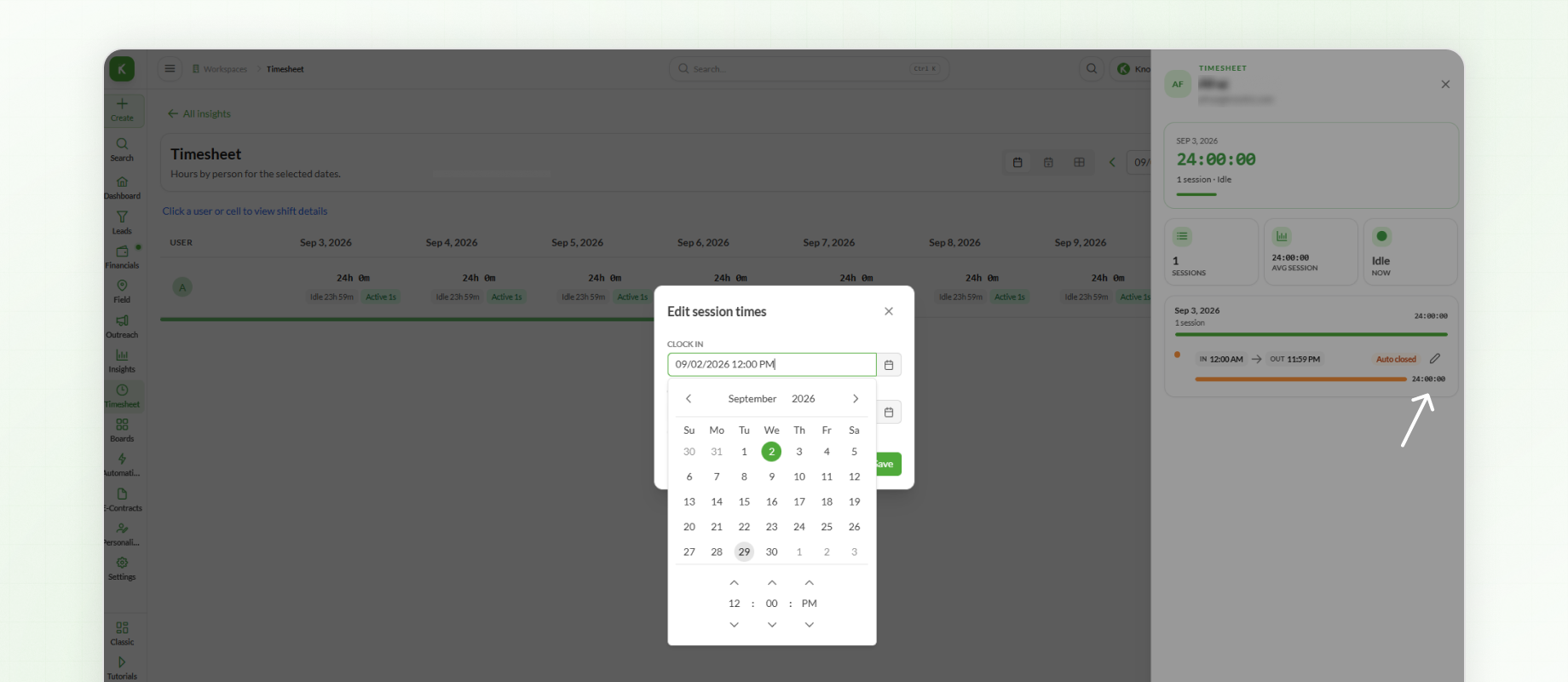
Users with the appropriate permission can correct their own entries, while users with team-update permission can correct time entries for other team members.
For example, if a user forgot to clock out or entered an incorrect time, the existing entry can be corrected instead of creating another session.
Timesheet Permissions
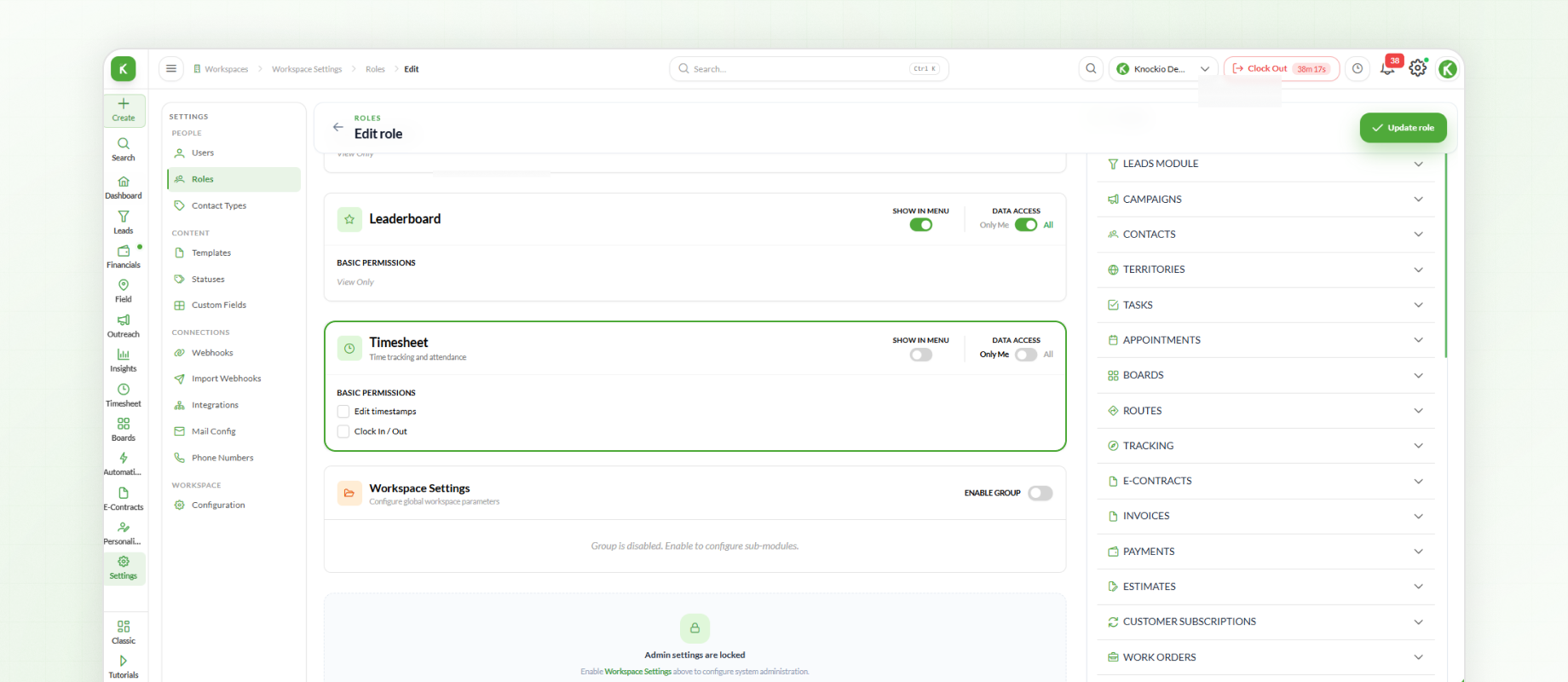
Access to Timesheet features depends on the permissions assigned to each user.
The available permissions include:
Timesheet View – Allows users to access Timesheet and view their own data.
Timesheet Full View – Allows users to view team timesheets and filter by team members.
Timesheet Check-In/Out – Allows users to use Clock In and Clock Out.
Timesheet Update – Allows users to edit their own time entries.
Timesheet Full Update – Allows users to edit time entries belonging to team members.
Clock-In Requirement
For workspaces where the clock-in requirement is enabled, users must be clocked in before performing other workspace actions.
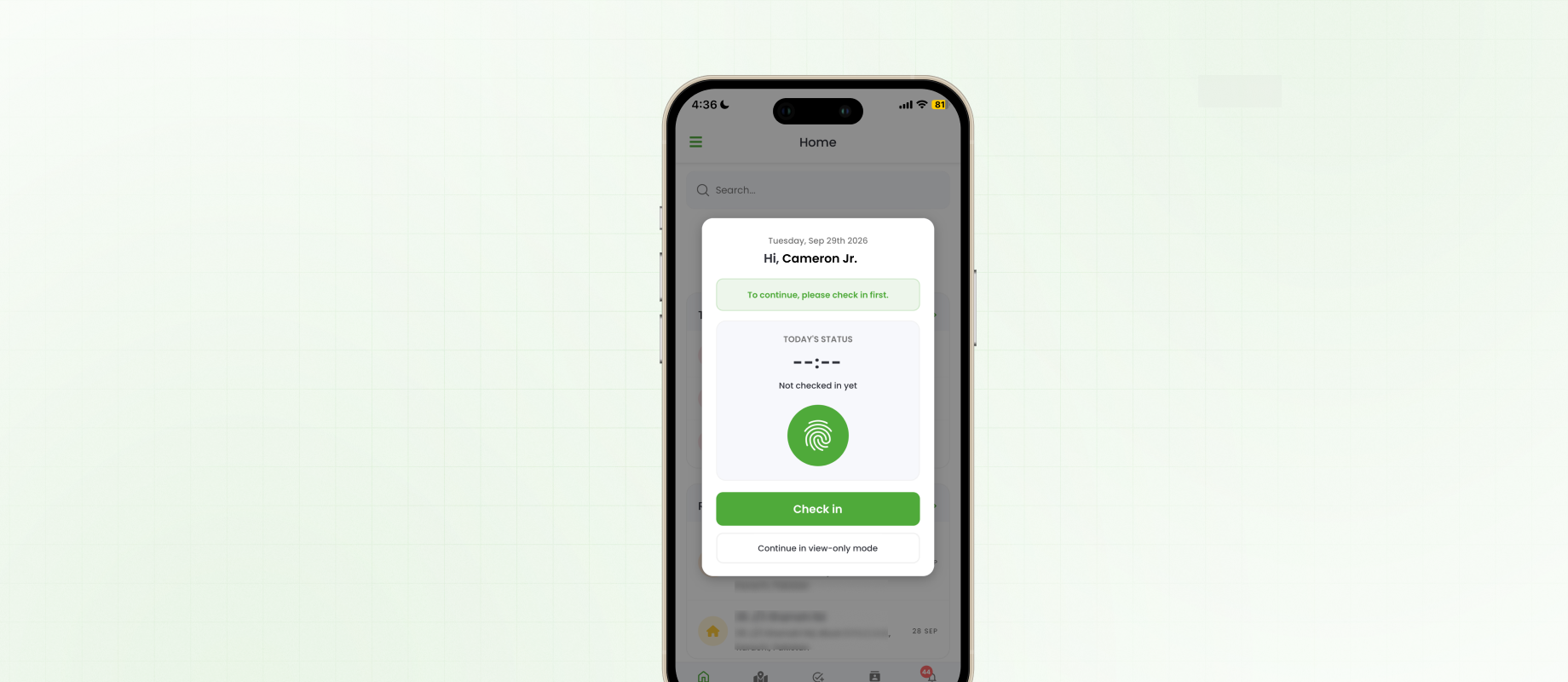
The Clock In and Clock Out actions remain available so users can manage their current work session.
Managing Missed Clock-Outs
If a user forgets to clock out, an authorized user can correct the relevant time entry when they have the required permission.
Knockio also supports the Auto Closed status for sessions that have been automatically closed.
Next Steps
You have now learned how to use Timesheets in Knockio. From clocking in and tracking active work sessions to reviewing individual or team hours, correcting time entries, and managing different reporting periods, Timesheet helps keep working hours organized.
Employees can use Timesheet to record their own working hours, while authorized managers and admins can monitor and manage team timesheets based on their assigned permissions.