
Financials - Setting Up Your Product Catalog
Create product categories and add products, services, and pricing to your catalog.
Table of Contents
- Overview
- Accessing the Product Catalog
- Creating a Product Category
- Active and Inactive Categories
- Creating a Product
- Selecting a Product Type
- Adding Product Information
- Selecting a Tax Category
- Adding Product Images
- Setting Unit of Measure
- Adding Product Variants
- Reviewing and Publishing the Product
- Next Steps
Overview
The Product Catalog allows you to organize the products and services your business offers. Product Categories can be used to group related products, while Products contain details such as type, pricing, billing units, tax categories, and images.
These products can then be used when creating estimates, invoices, purchase orders, and other financial documents.
This article explains how to create product categories and add products to the catalog.
Accessing the Product Catalog
To create or manage product categories and products:
Select Financials from the left-hand navigation menu.
Under Catalog, select Product Categories.
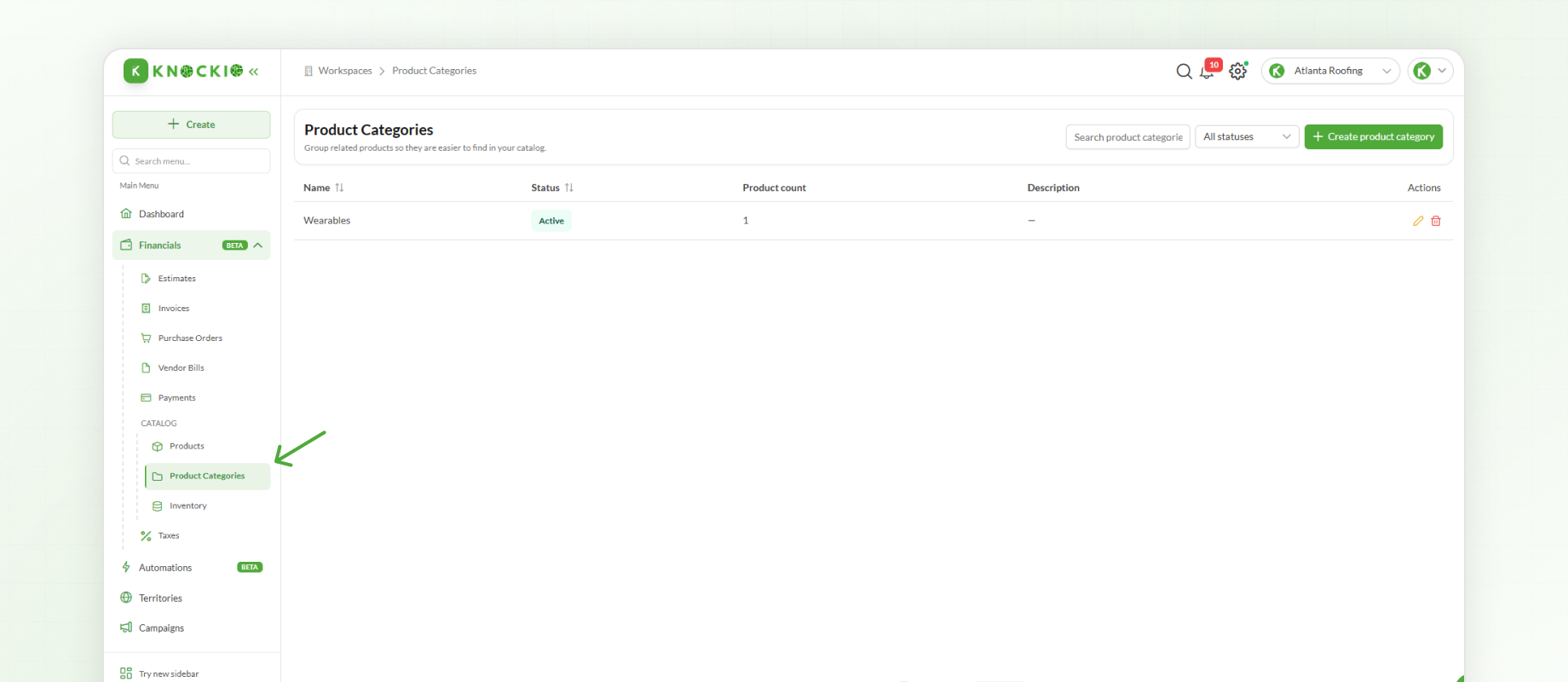
The Product Categories section allows you to organize products into groups, while the Products section contains the individual products and services available for use throughout Knockio.
Creating a Product Category
To create a new product category:
Click Create Product Category.
Enter a Category Name.
Add a Description, if required.
Select whether the category should be Active.
Click Create Product Category.
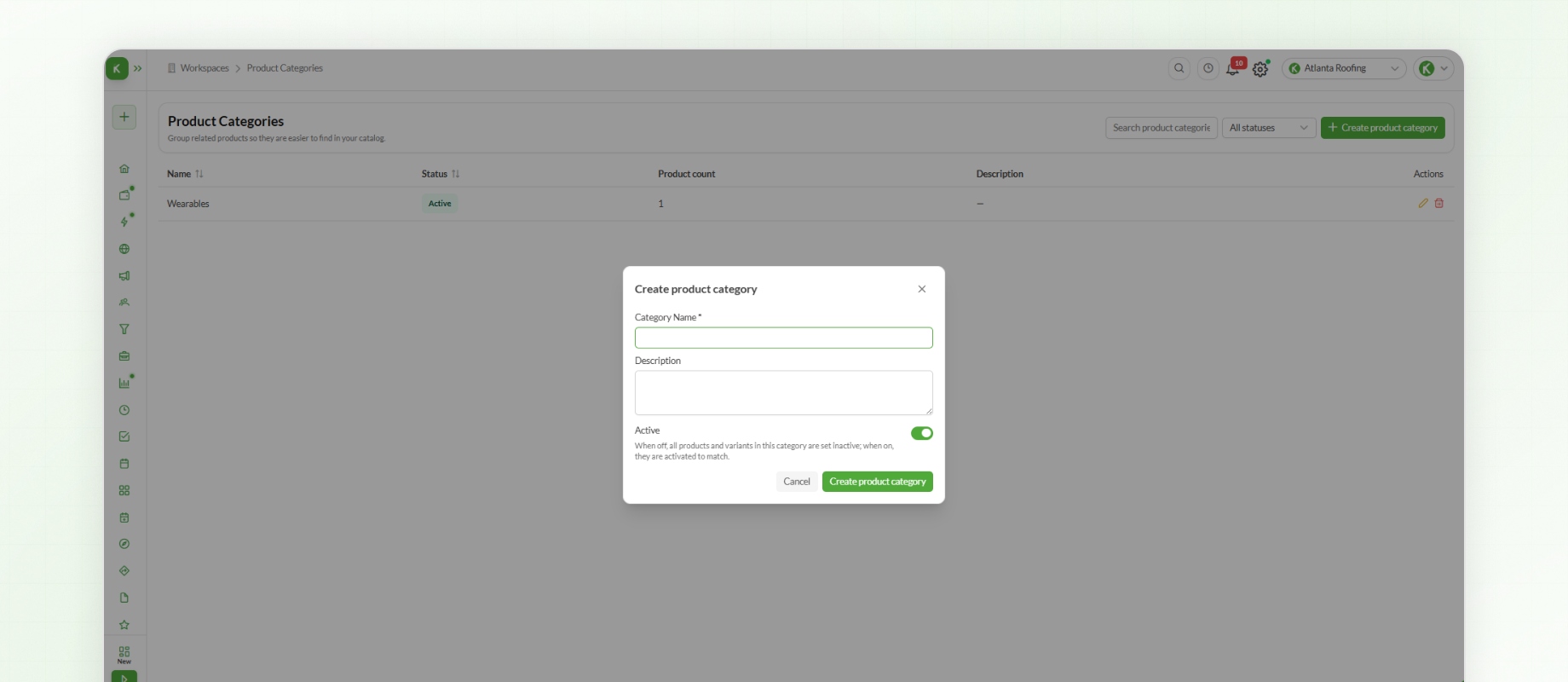
The category name should clearly describe the products that will be included in it. For example, a business selling clothing products could create a category called Wearables.
Active and Inactive Categories
When a category is marked as Active, the products within that category remain available.
If a category is marked as Inactive, all products within that category will also become inactive.
The Product Categories page displays both Active and Inactive categories, making it easier to manage categories based on their current status.
Creating a Product
After creating a product category, you can add individual products to the catalog.
To create a new product:
Open Products under Catalog.
Click Add Product.
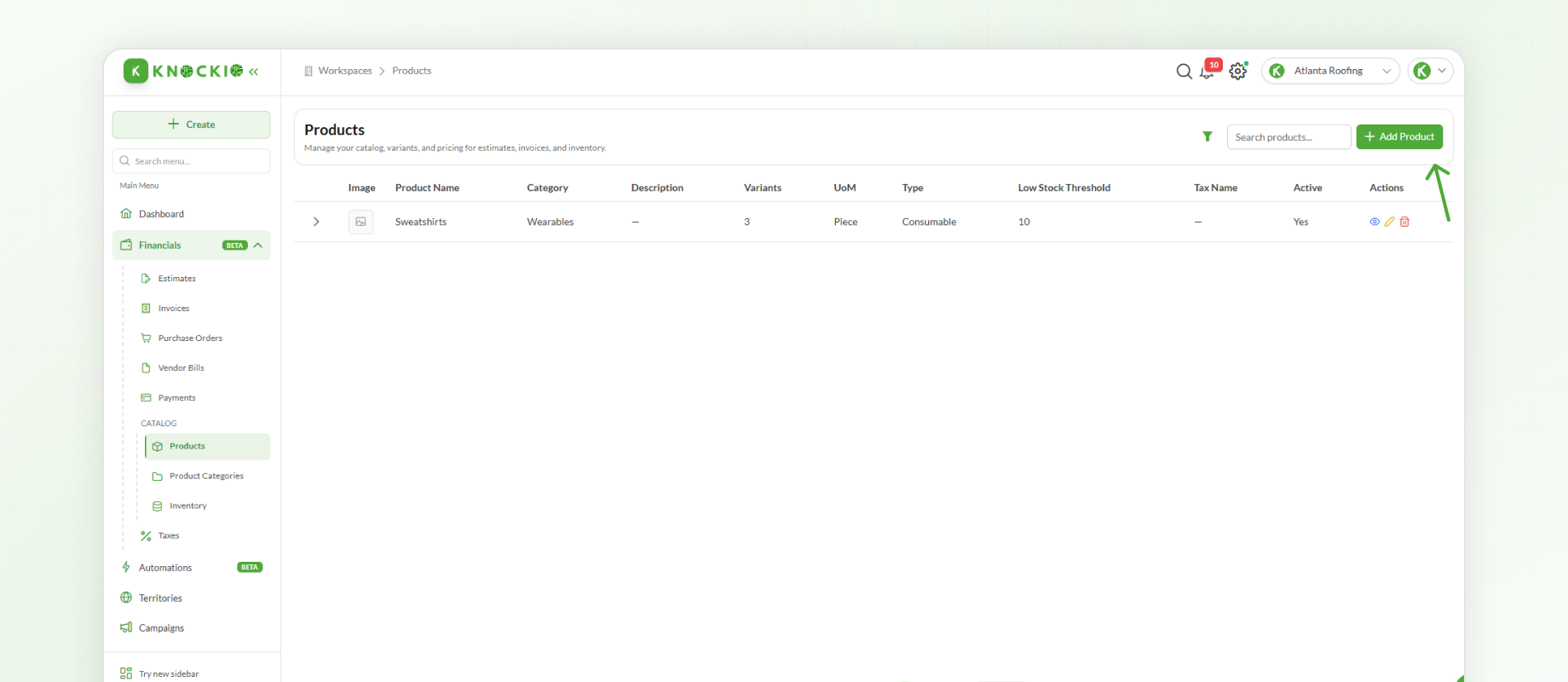
The product setup begins by selecting the appropriate Product Type.
Selecting a Product Type
Knockio provides three product types:
Service – Services provided to customers, such as installation, maintenance, or repairs.
Consumables – Products or goods that are used during operations and may need to be restocked.
Assets – Company-owned equipment or items that can be used, rented out, or sold when required.
Select the product type that best matches the item you are adding to the catalog.
Adding Product Information
After selecting the product type, enter the basic product information.
This includes:
Product Name
Description
Product Category
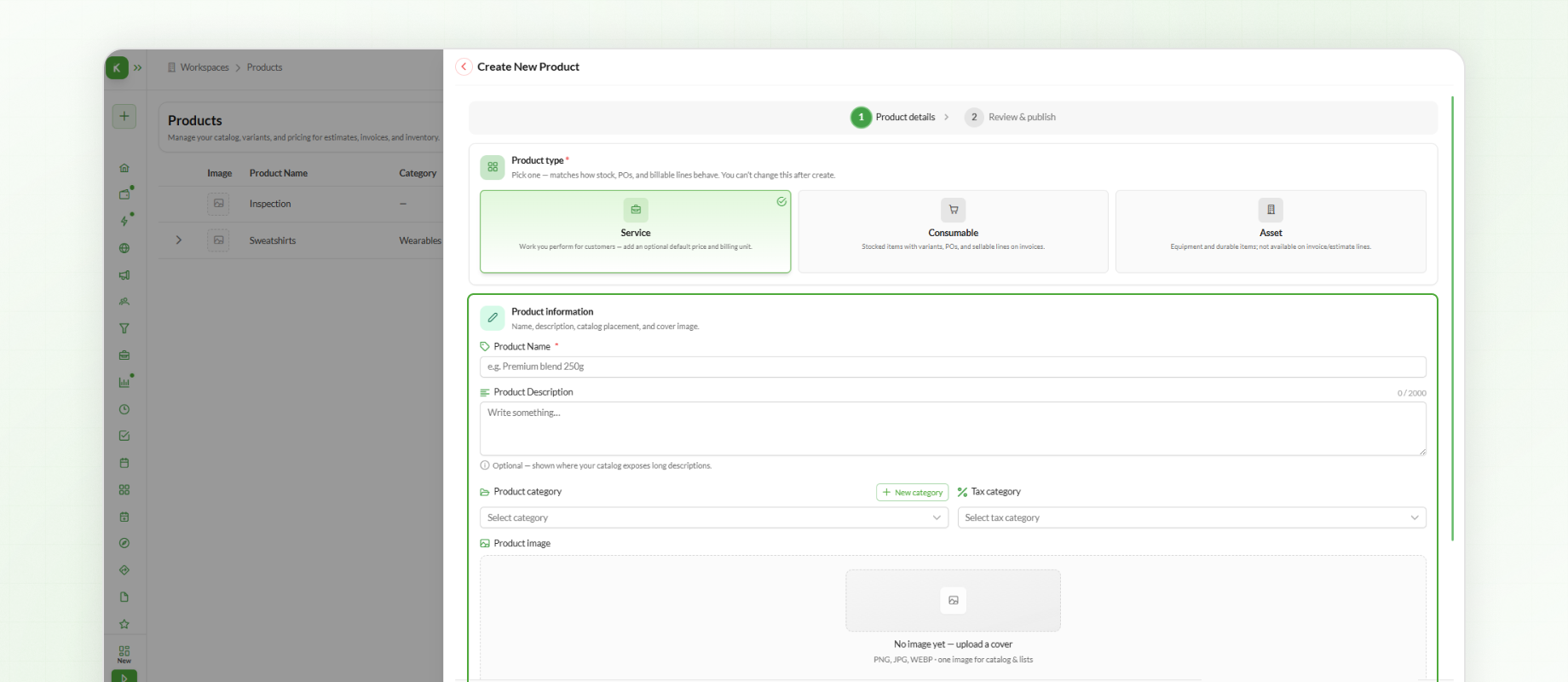
Selecting a Tax Category
If applicable, select the appropriate Tax Category for the product.
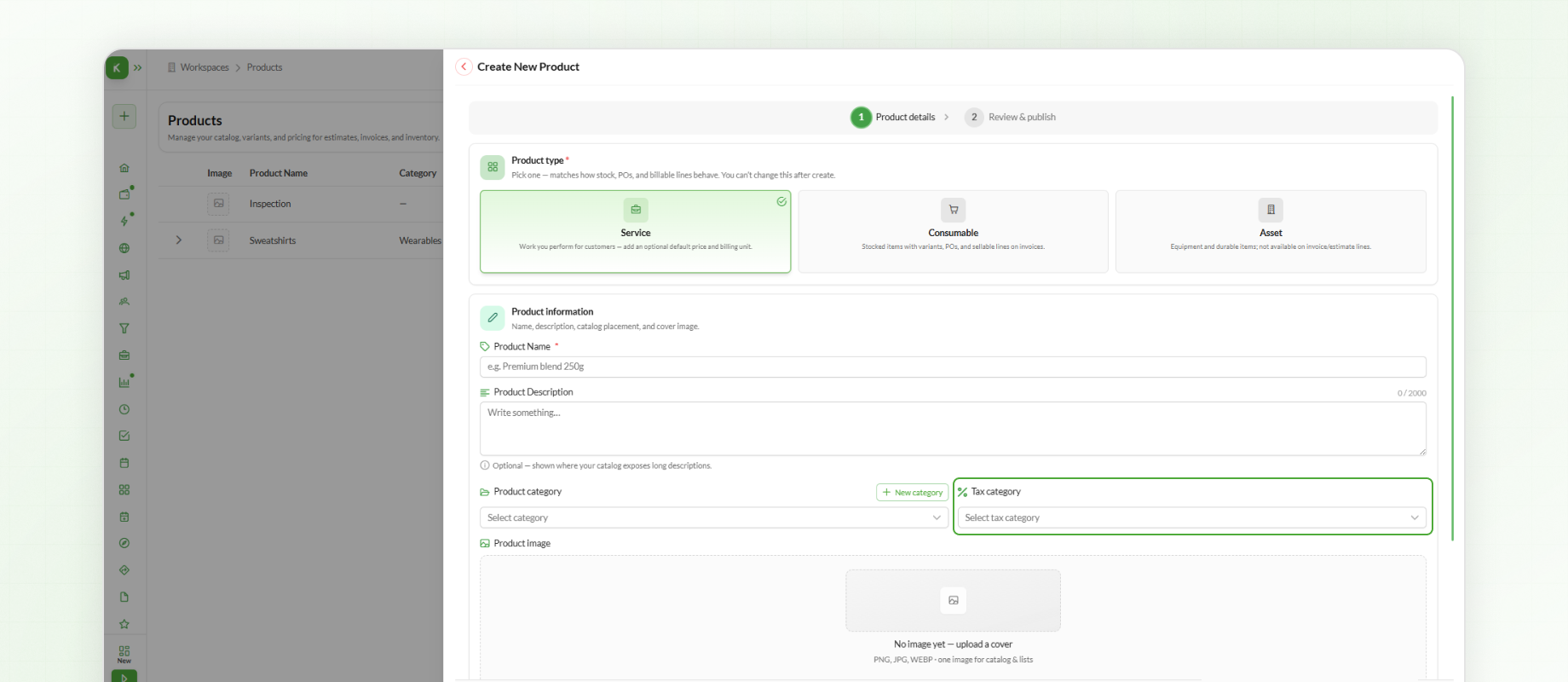
Tax categories can be created and managed from the Tax section in the left-hand navigation menu.
Selecting the appropriate tax category helps ensure that the relevant tax information is associated with the product when it is used in financial documents.
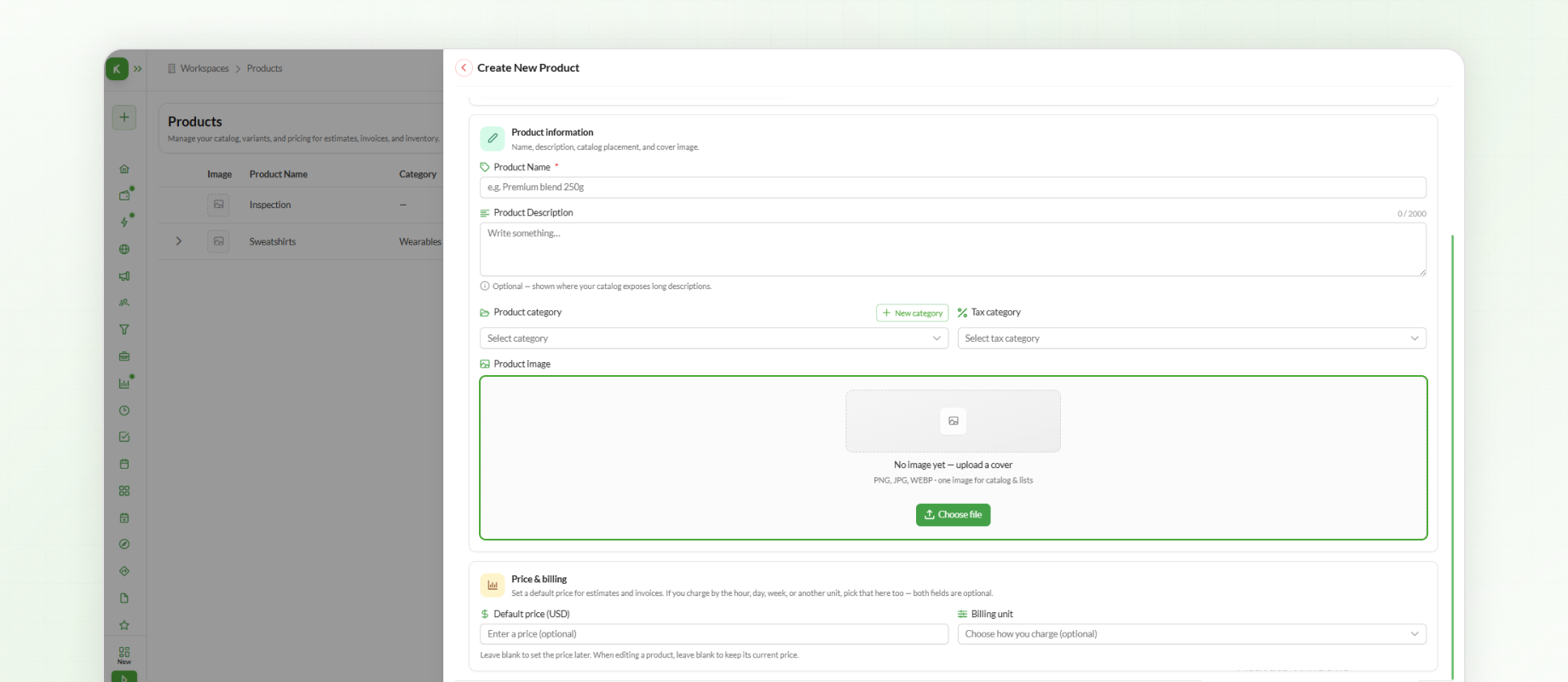
Adding Product Images
Product images can be uploaded to make products easier to identify throughout the platform.
Add an image that clearly represents the product so team members can recognize it when selecting products for financial documents.
Setting Unit of Measure
Select the appropriate unit of measure.
The billing unit determines how the product or service is priced. Depending on the item, you may bill:
Per item
Per hour
Per square foot
Select the billing unit that matches how your business charges for the product or service.
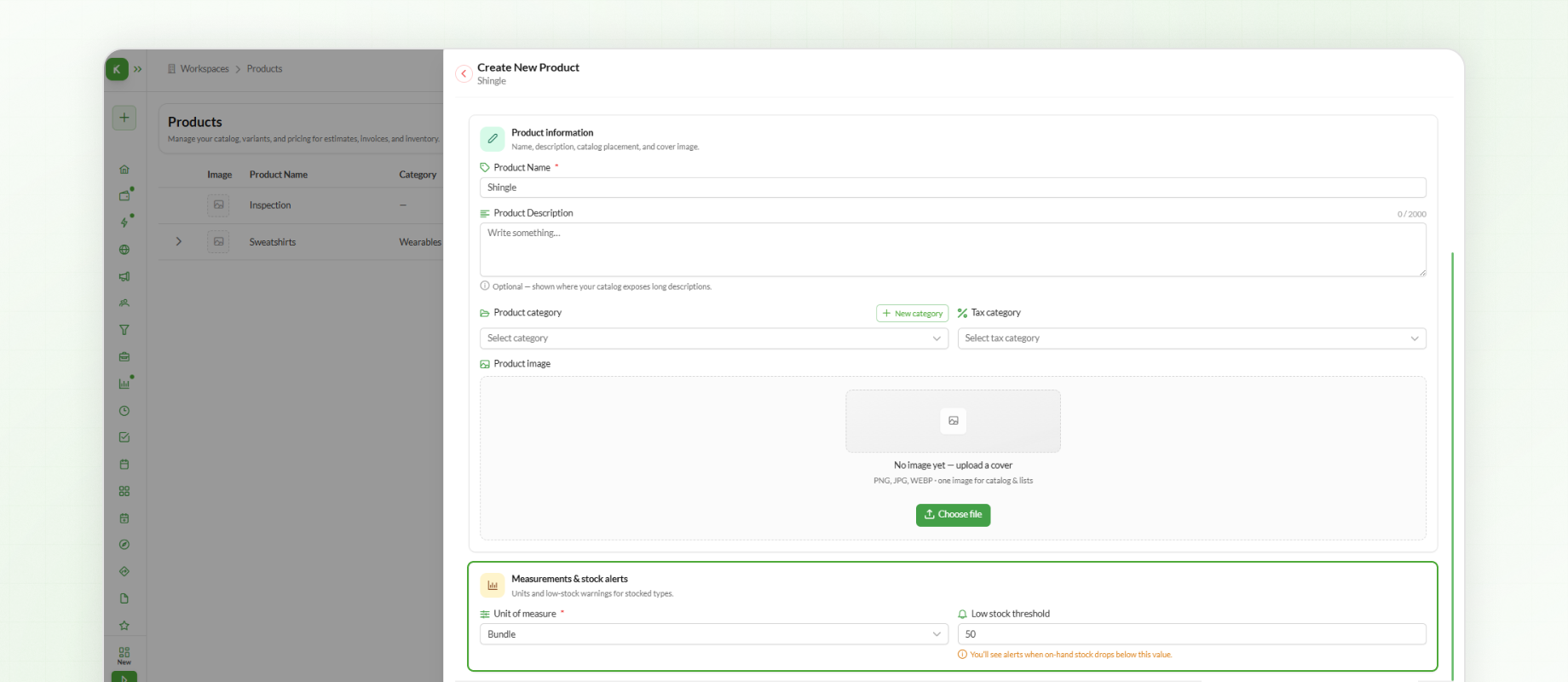
You can also set a Low Stock Threshold. Knockio will send an alert when the available stock falls below the specified value.
After entering the required product information, click Continue to proceed with the product setup.
Adding Product Variants
After entering the product details, click Continue to move to Variants & Pricing.
Variants allow you to add different versions of the same product while keeping them under a single product listing. For example, a sweatshirt can have separate variants for different colors.
For each variant, you can enter:
Variant (name of the variant)
SKU (stock-keeping unit)
Price (selling price)
Cost (product cost)
Qty (available quantity)
Images (images for the variant, if required)
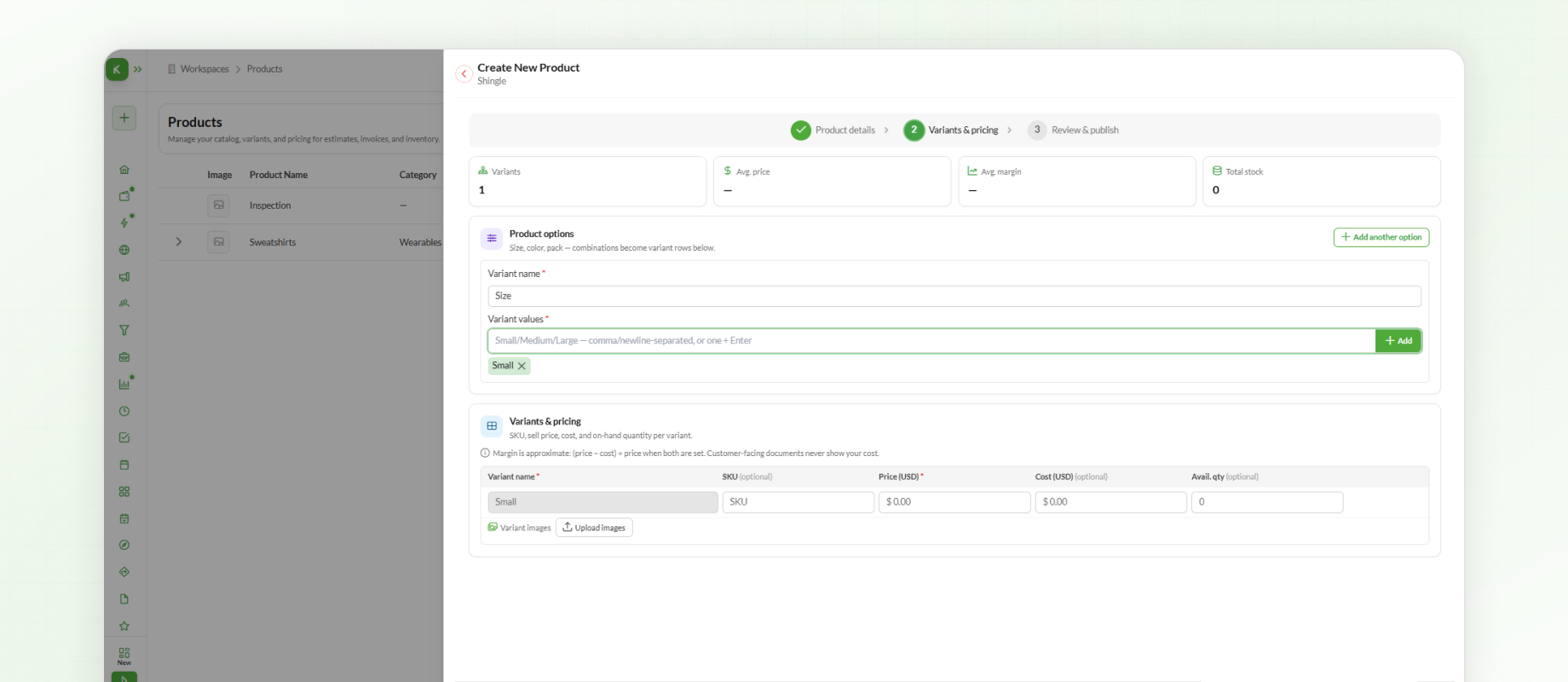
You can add multiple variants to the same product. Each variant can have its own pricing and other relevant details.
After adding the required variants, click Continue.
Reviewing and Publishing the Product
Review the information to make sure everything is correct. If changes are needed, click Back to return to the previous step.
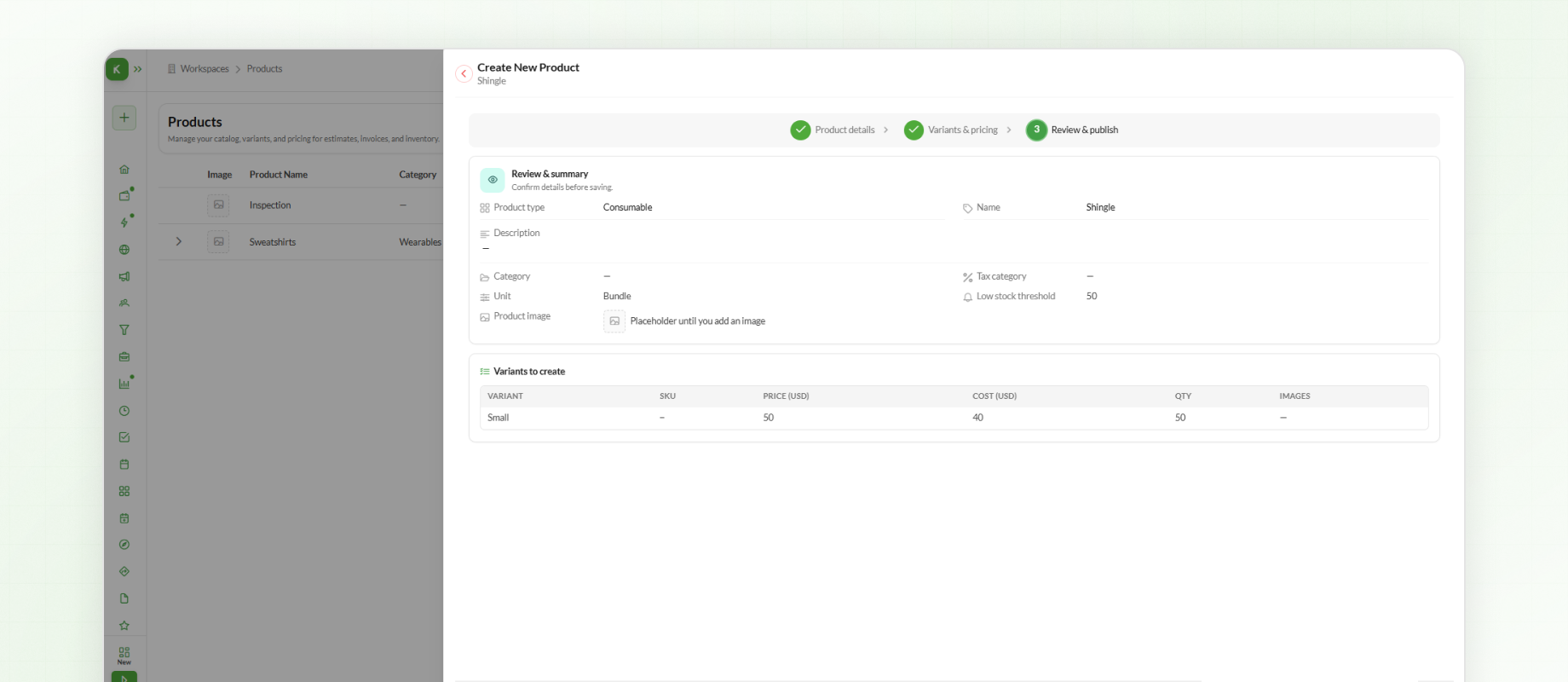
Once everything is confirmed, click Create product to add the product to the catalog.
As your catalog grows, finding products becomes much easier using filters. You can filter products by Category or Product Type, helping your team quickly locate exactly what they need.
Next Steps
You have now completed setting up your Product Categories and Products in Knockio. With your catalog organized, the next step is to create reusable templates for your invoices, estimates, purchase orders, and other financial documents to ensure a consistent, professional look across your workspace.