
Creating Templates
Create and manage templates for invoices, estimates, purchase orders, work orders, and vendor bills.
Table of Contents
Overview
The Templates section allows you to create and manage reusable templates for your workspace. Templates can help standardize frequently used content and make it easier to create consistent documents when needed.
This article explains how to access the Templates section and create a new template.
Accessing the Templates Section
To create or manage templates:
Click the Settings icon in the bottom-left corner of the screen.
Select Templates from the left-hand menu.
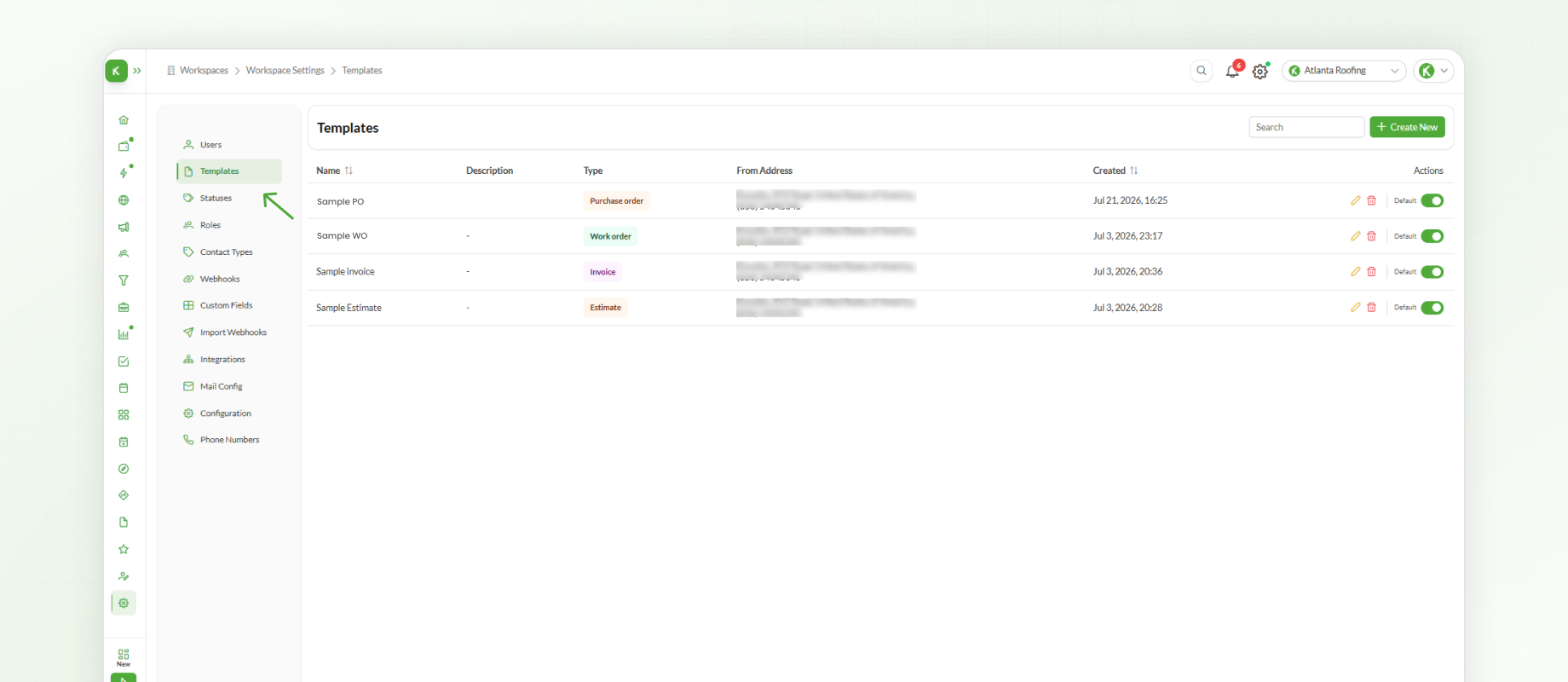
The Templates section displays existing templates within the workspace, where they can be managed or new templates can be created.
Creating a Template
To create a new template:
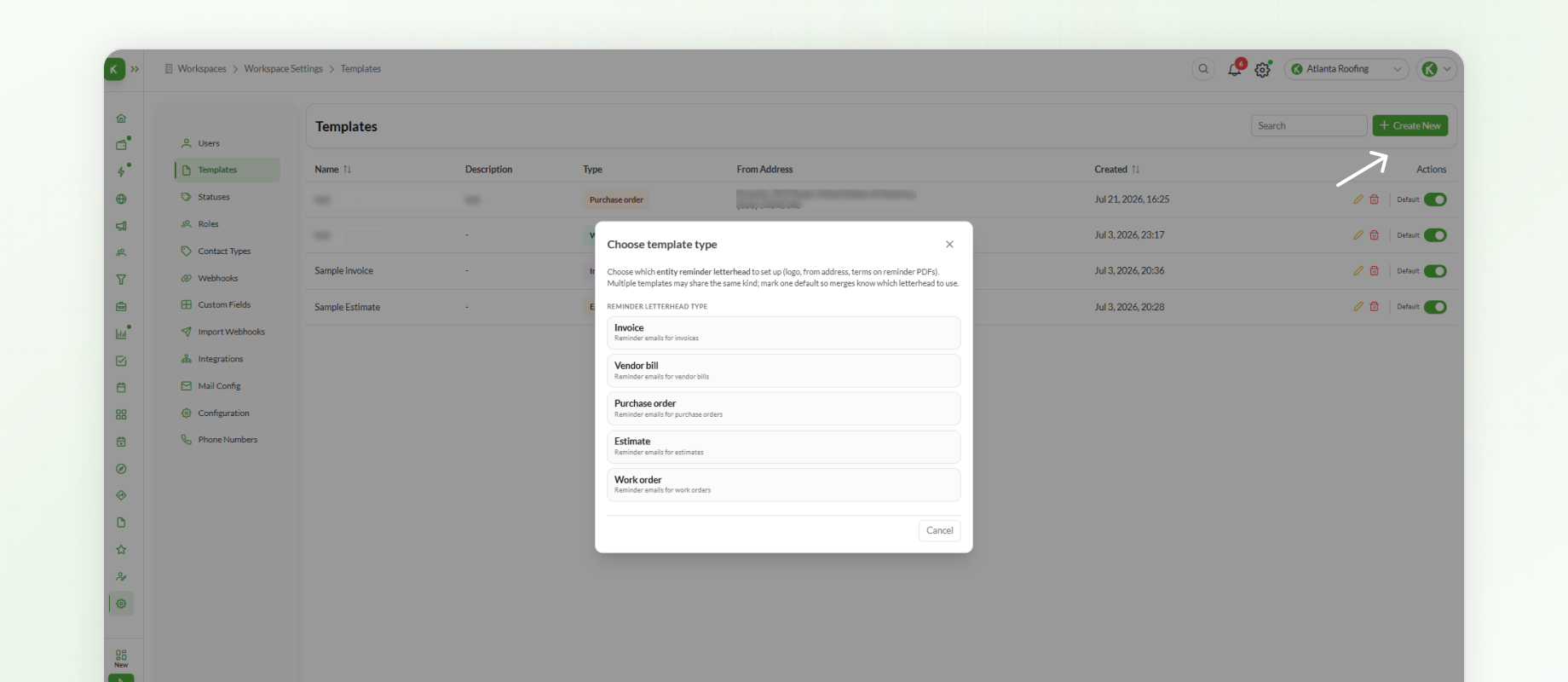
Click Create New.
Select the Template Type you want to create.
Available template types include:
Invoice
Vendor Bill
Purchase Order
Estimate
Work Order
After selecting the template type, add template details:
Enter a Template Name.
Add a Description, if needed.
Add your Company Logo and Company Address.
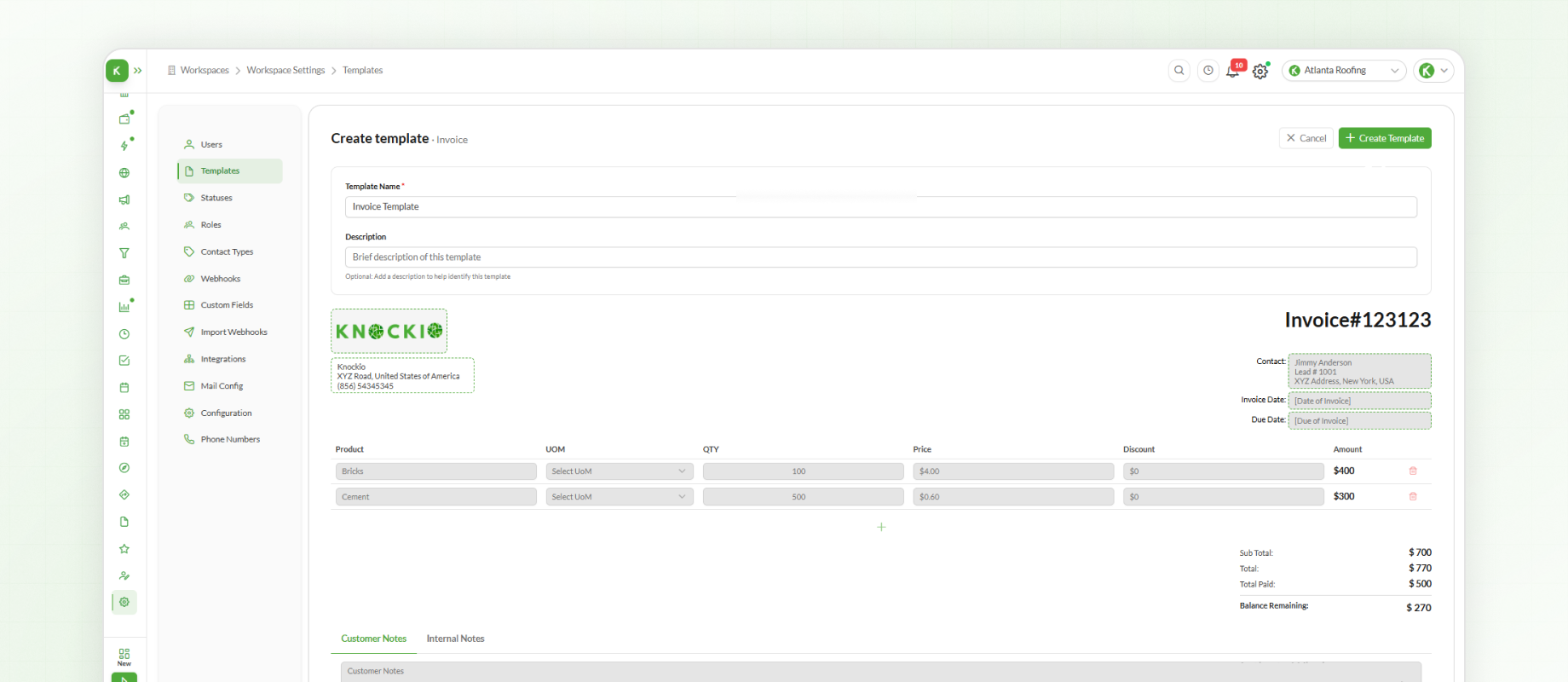
You can also add Terms and Conditions in the designated section. These can be used to include any relevant terms that should appear on the template.
After completing the template details, click Create Template above.
The template is now created and ready to use.
Next Step:
Having established your reusable templates in Knockio, your workspace is set up for fast, consistent document creation. Next, head over to Creating Invoices to generate line-item bills from your catalog, connect them to leads or estimates, and dispatch them to clients.