
Creating Customer Subscriptions
Set up recurring billing, manage subscription schedules, and handle invoices.
Table of Contents
- Overview
- Accessing the Customer Subscriptions Module
- Creating a Subscription
- Adding Subscription Details
- Adding Line Items
- Creating the Subscription Draft
- Creating a Subscription from an Estimate Module.
- Activating the Subscription
- Automatic Invoice Generation
- Managing Subscription Contacts
- Managing Past Due Subscriptions
- Pausing a Subscription
- Cancelling a Subscription
- Completing a Subscription
- Subscription Statuses
- Handling Failed Billing Cycles
- Finding Subscription Invoices
- Recurring and One-Time Charges
- Subscription Limitations
- Next Steps
Overview
The Customer Subscriptions module allows you to set up recurring billing for customers who regularly pay for the same service. You can use subscriptions for services such as monthly maintenance, recurring cleaning, lawn care, monitoring, or other ongoing services.
A subscription creates a separate invoice automatically each time a billing period comes due. The subscription manages the recurring billing schedule, while each invoice handles the actual bill and payment.
This article explains how to create and activate a subscription, manage billing schedules, and handle different subscription statuses.
Accessing the Customer Subscriptions Module
To create or manage subscriptions:
Select Financials from the left-hand navigation menu.
Select Customer Subscriptions.
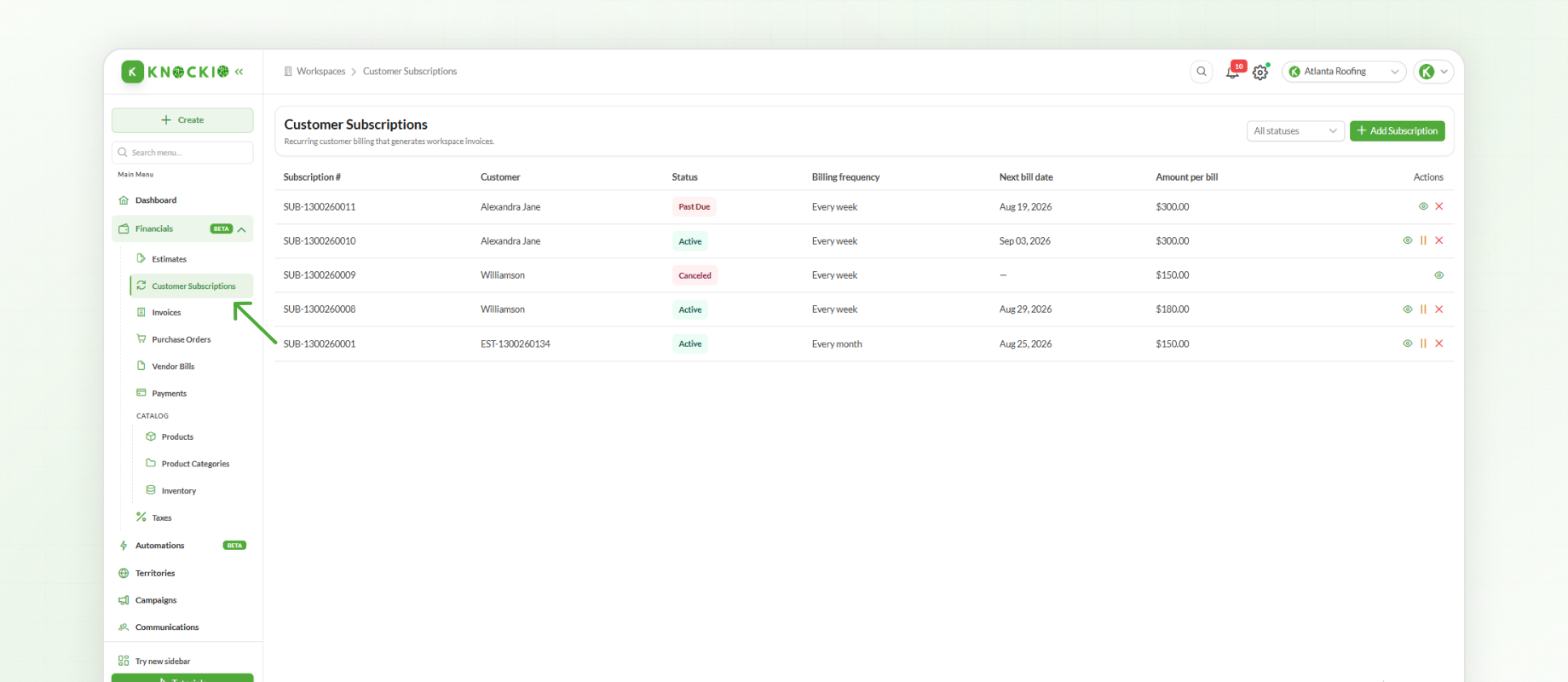
The Customer Subscriptions module displays existing subscriptions along with their current statuses, billing frequency, next billing date, and amount per bill.
You can also use the All statuses filter to find subscriptions based on their current status.
Creating a Subscription
To create a new subscription:
Click Add Subscription.
Select the required Lead or accepted Estimate.
Enter the subscription details.
Add the Line Items included in the subscription.
Click Create Draft.
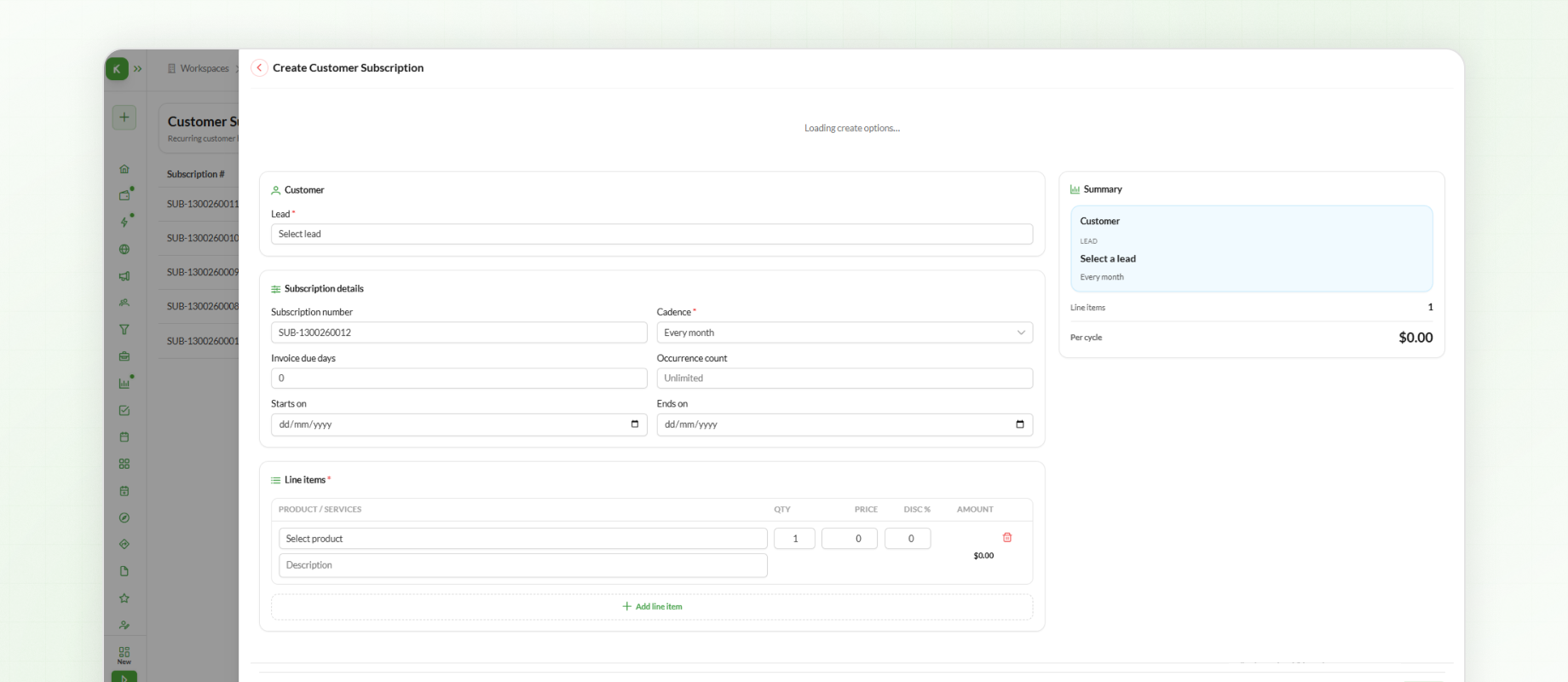
A subscription can be created directly from a Lead or from an accepted Estimate. When creating a subscription from an accepted estimate, recurring items are used for the subscription while one-time items remain part of the normal estimate and invoice workflow.
Adding Subscription Details
The Subscription Details section contains the information used to define the recurring billing schedule.
This includes:
Subscription Number – Identifies the subscription. Knockio provides a subscription number automatically.
Cadence – Defines how frequently the customer should be billed, such as every week or every month.
Invoice Due Days – Specifies the number of days before the invoice is due.
Occurrence Count – Defines how many billing cycles should occur. This can be left as empty when there is no set number of billing occurrences.
Starts On – Defines when the subscription begins.
Ends On – Sets an optional date for the subscription to finish.
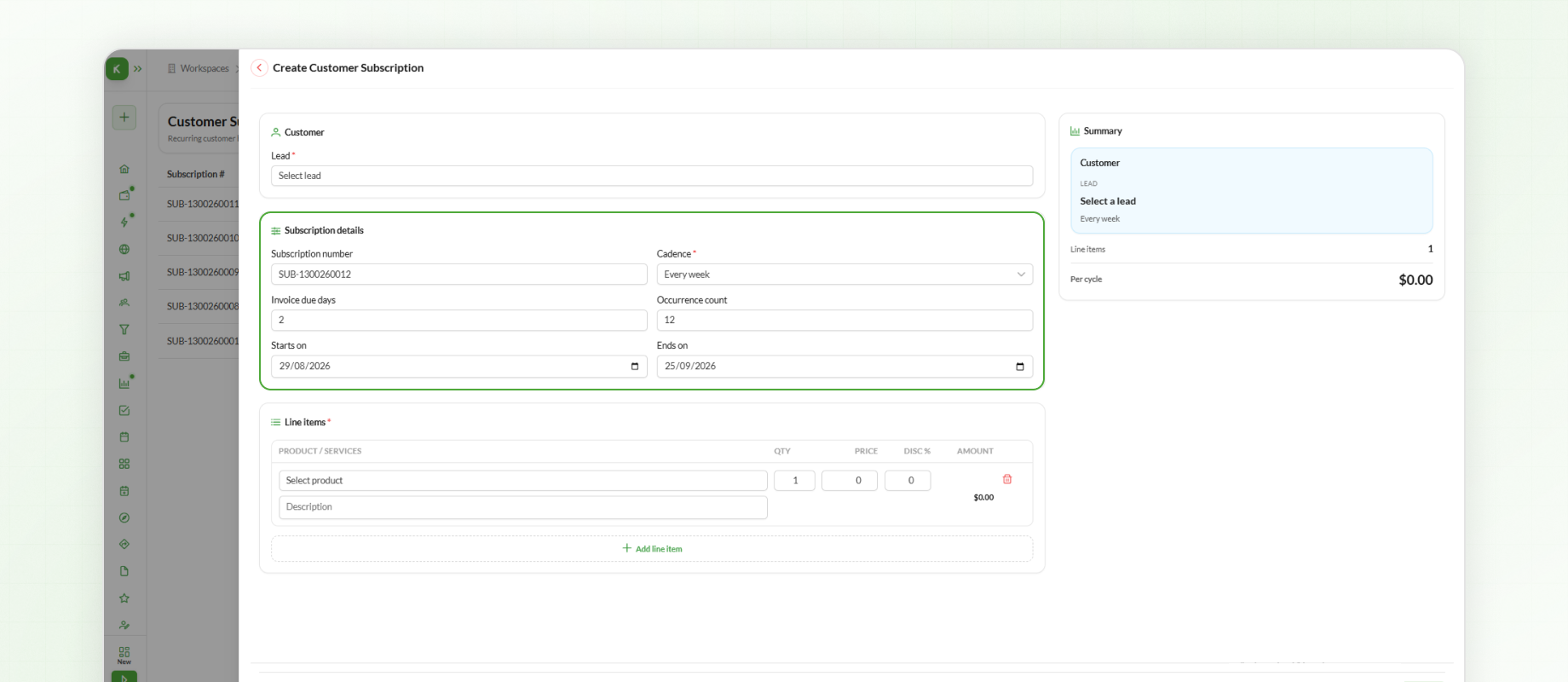
These settings determine how and when Knockio creates invoices for the subscription.
Adding Line Items
The Line Items section is used to add the products or services that will be billed on each subscription cycle.
To add a line item:
Select a Product or service.
Enter the Quantity.
Enter the Price.
Add a Discount, if required.
Add a Description, if needed.
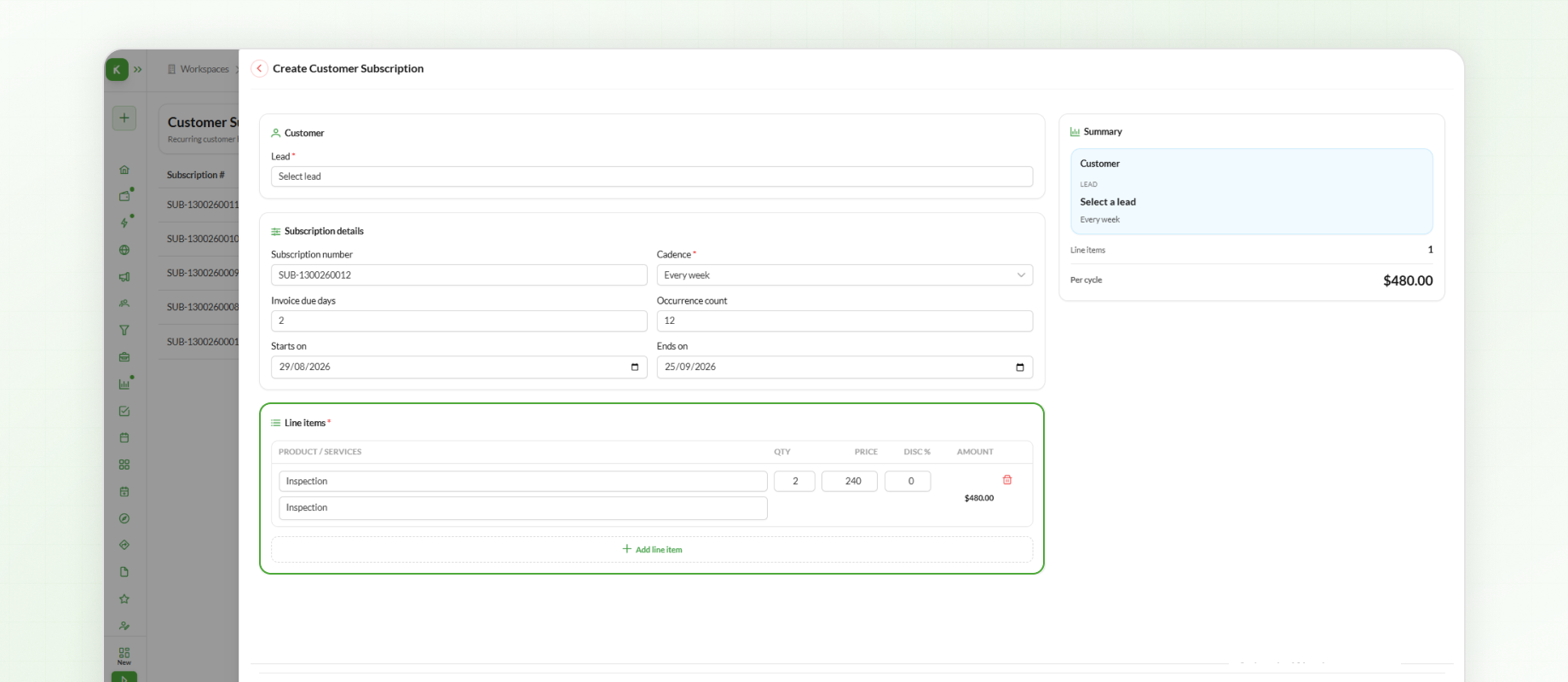
To add additional products or services, click Add line item and repeat the process.
The subscription uses these products and prices to create the line items on each recurring invoice.
Creating the Subscription Draft
After entering the required subscription details:
Review the Details.
Click Create Draft.
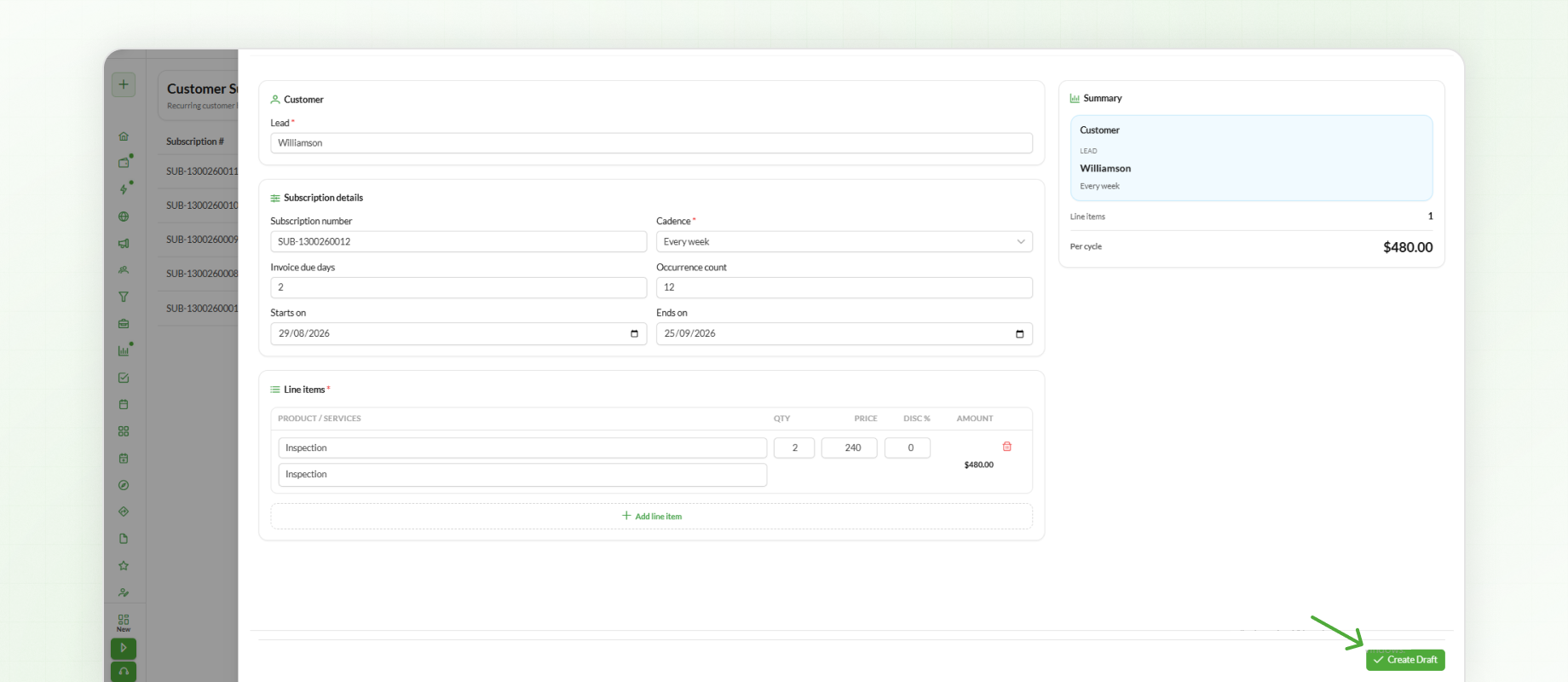
The subscription is created with a Draft status.
A draft subscription does not actively bill the customer. You can review the products or services, prices, billing frequency, start date, occurrence count, and end date before activating it.
Creating a Subscription from an Estimate Module.
You can create a subscription from an accepted estimate that contains recurring line items.
To create a subscription:
Open Estimates.
Click View for the required estimate.
Select the Subscriptions tab.
Click Create Subscription.
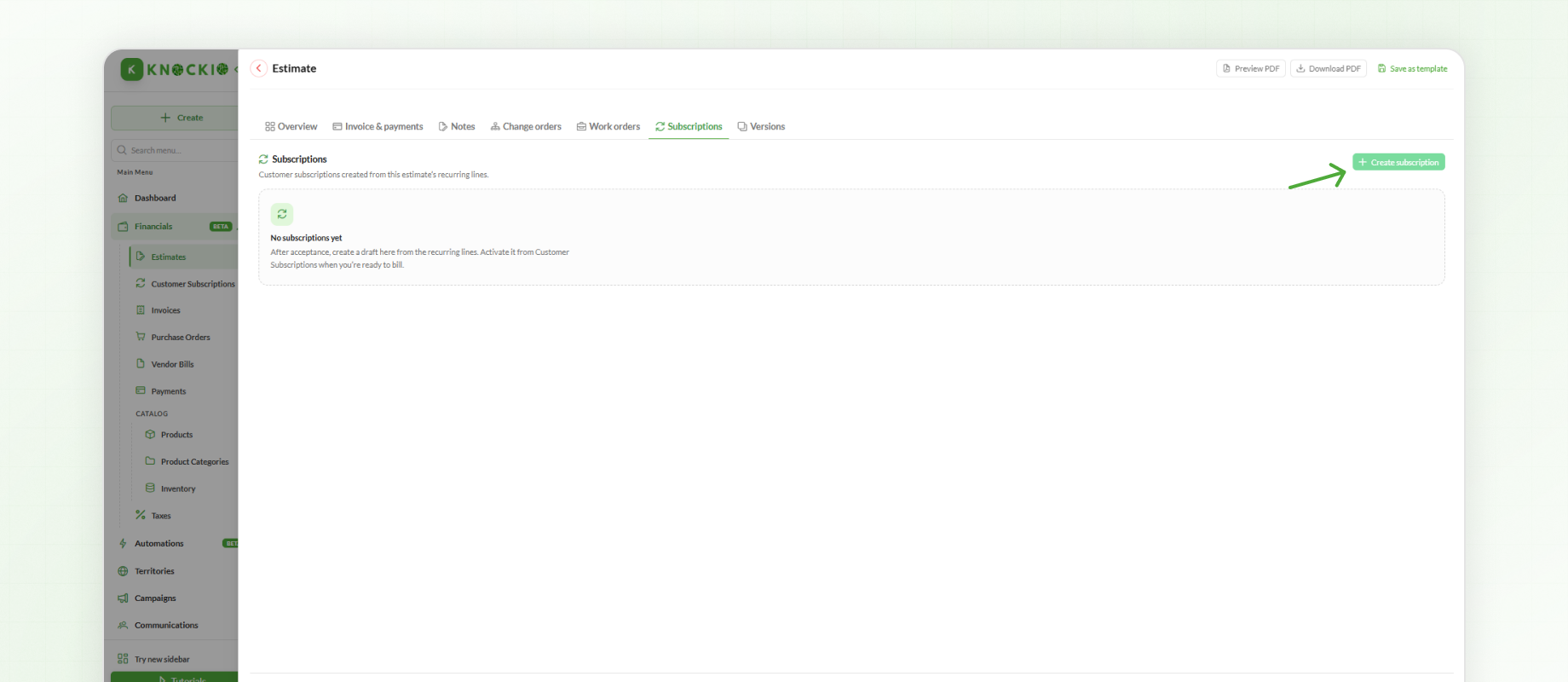
Note: Knockio uses the recurring line items from the estimate for the subscription. Any one-time items remain separate and a subscription can only be created if an estimate has recurring line items.
Activating the Subscription
Once the subscription details are correct, you can activate the subscription.
Activating the subscription starts the recurring billing schedule. When activating it, you can choose when billing should begin.
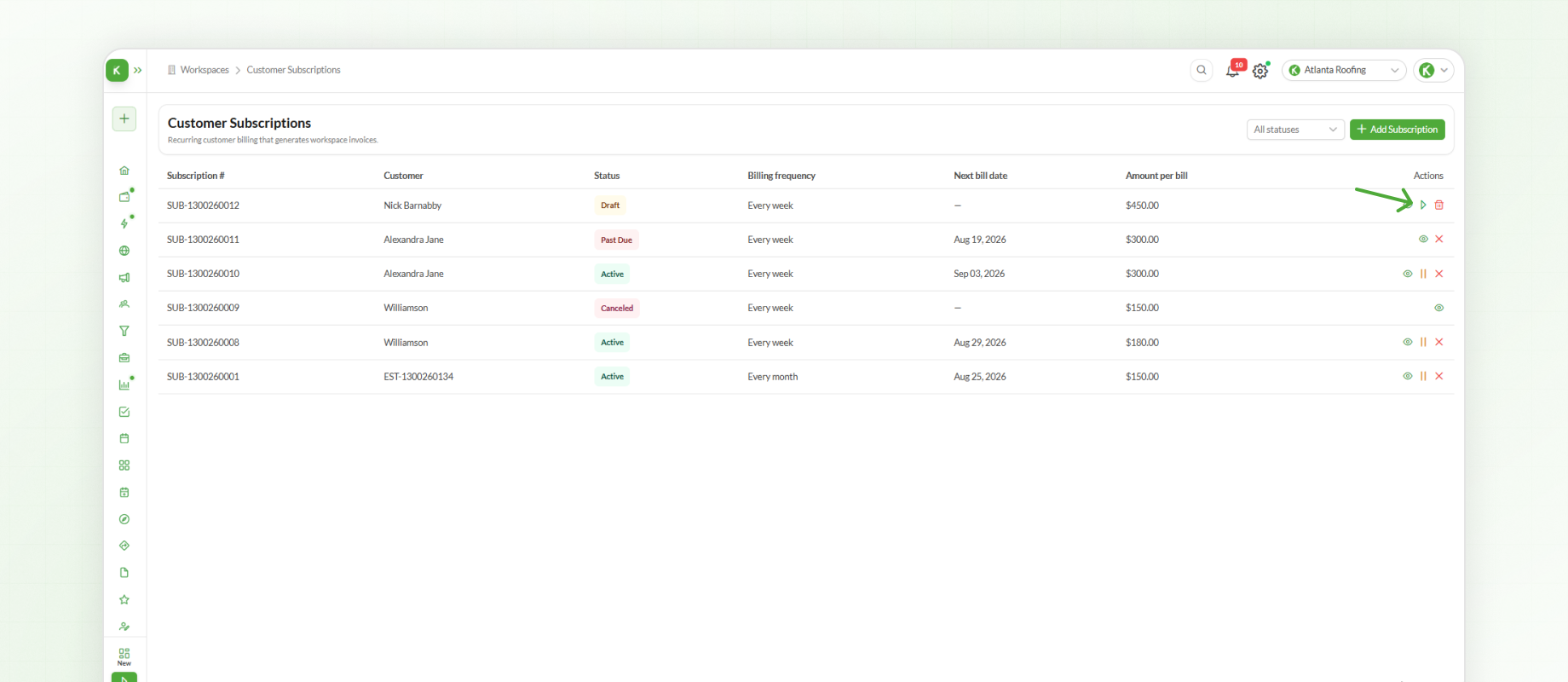
Once activated, the subscription changes from Draft to Active.
The billing process then follows the selected schedule:
Draft → Active → Invoice Created → Customer Pays → Next Billing Date → Next Invoice
Automatic Invoice Generation
When an active subscription reaches its next billing date, Knockio automatically creates an invoice.
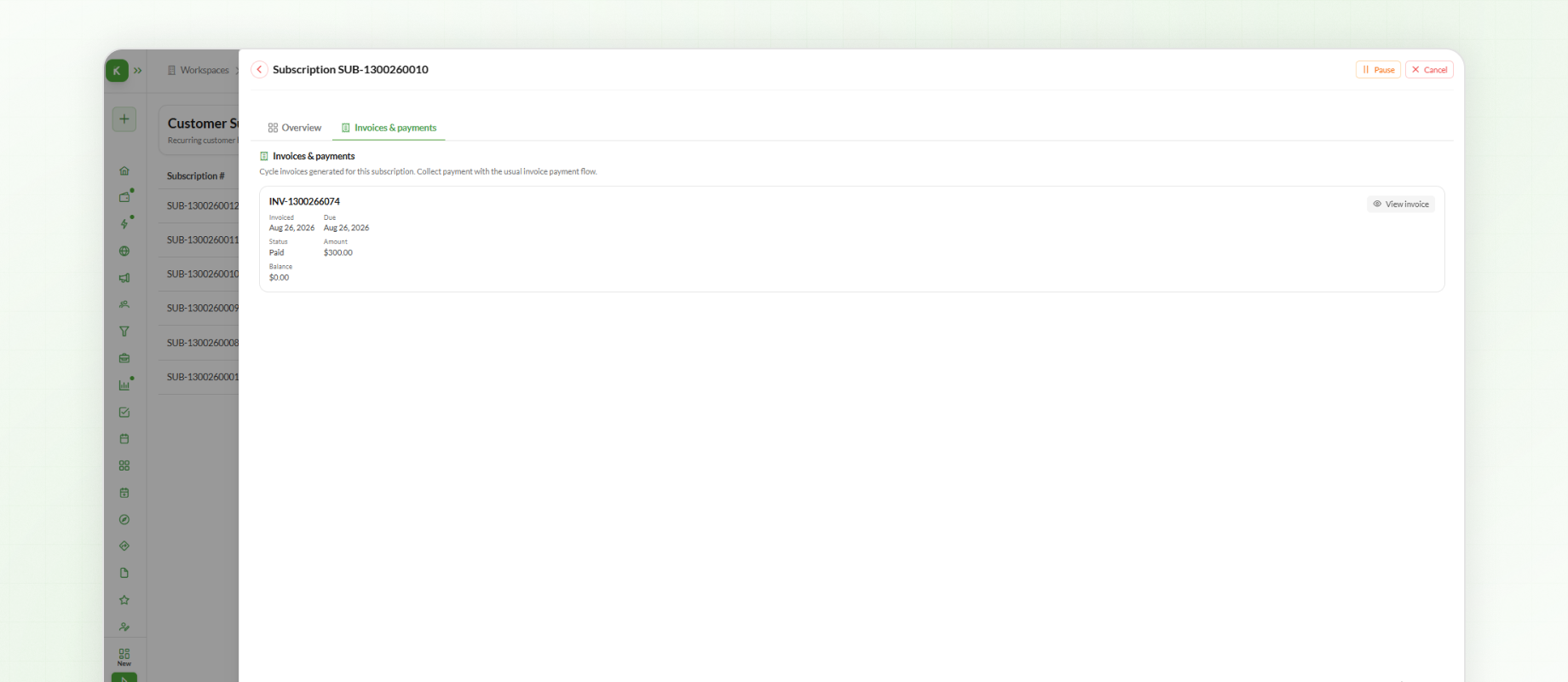
For example, if a subscription is set to $150 every month with a first billing date of January 1, Knockio creates a separate invoice for each billing cycle:
January 1 – Invoice #1001 — $150
February 1 – Invoice #1002 — $150
March 1 – Invoice #1003 — $150
Each invoice is a normal Knockio invoice and is created with a Sent status, making it ready for the customer and payment process.
The subscription does not need to be manually renewed after every payment. It continues creating invoices according to its billing schedule until it is paused, cancelled, or completed.
Managing Subscription Contacts
When Knockio creates a subscription invoice, it uses the subscription's products and pricing for the invoice line items. It also uses the lead's current Primary Contact for the bill-to information.
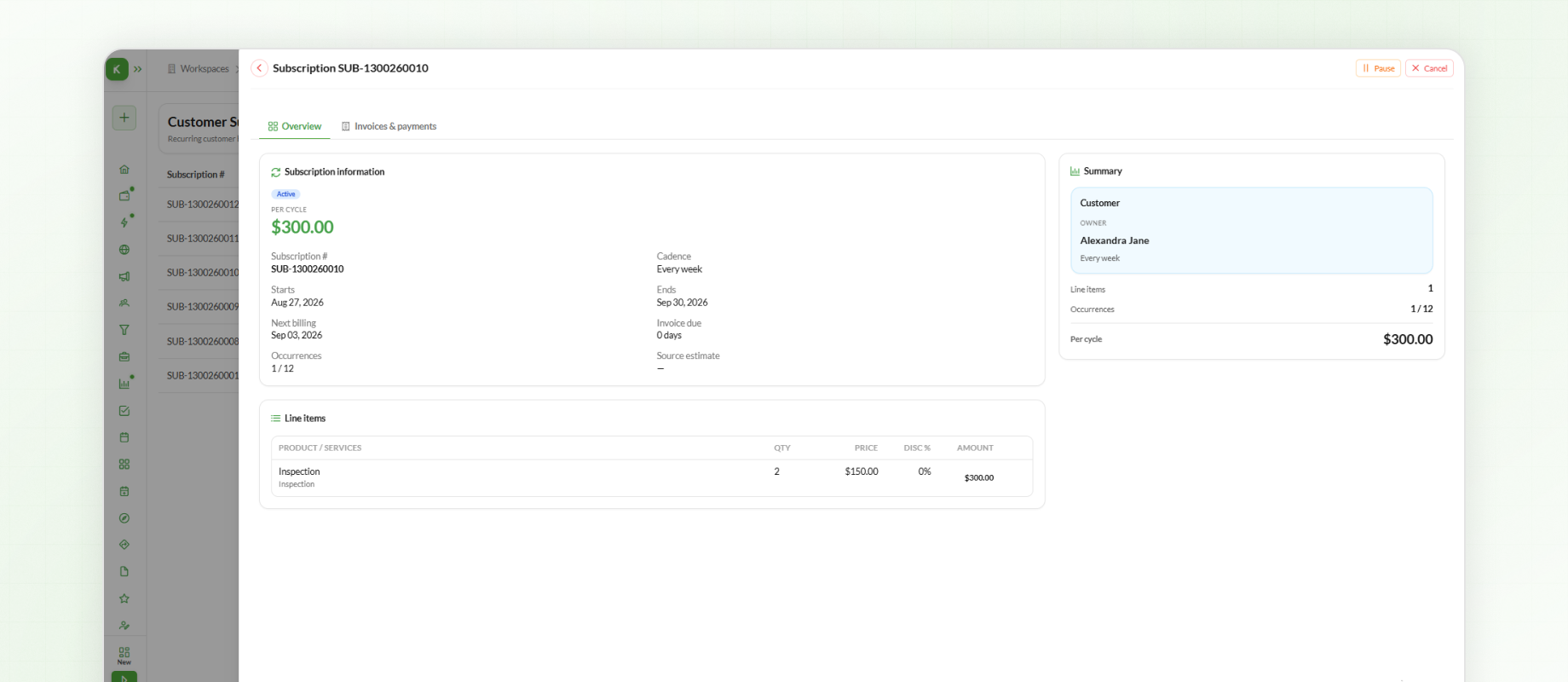
If the primary contact changes, future subscription invoices use the new contact.
For example:
January invoice – Bill-to: John
Primary contact changes to Sarah
February invoice – Bill-to: Sarah
The January invoice remains unchanged because existing invoices keep the information recorded when they were created.
Managing Past Due Subscriptions
If a subscription invoice is not paid before its due date, the subscription can move to Past Due.
A Past Due subscription has an unpaid invoice that is past its due date.
While a subscription is Past Due:
No new subscription invoices are created.
The scheduled billing position is retained.
The overdue invoice must be cleared before billing can continue.
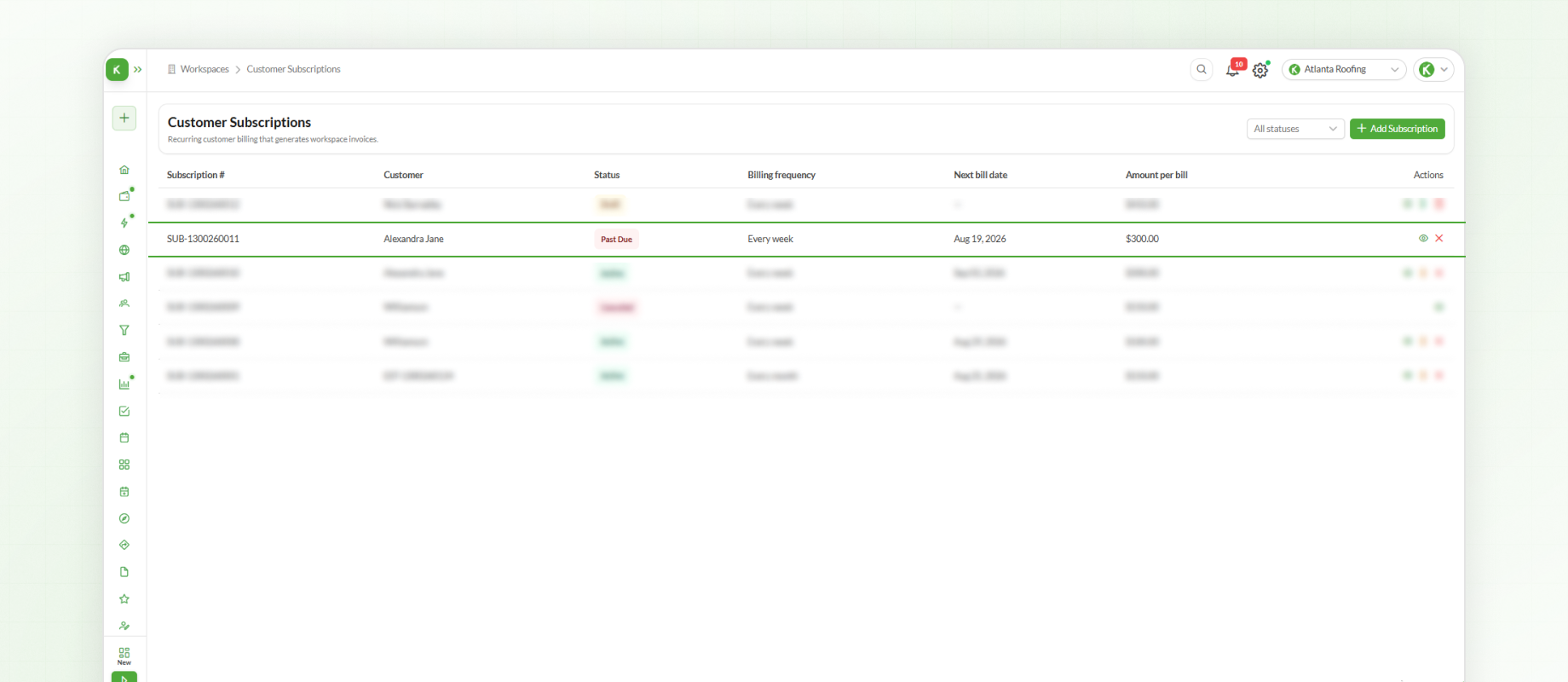
Once the overdue invoice is cleared, Knockio can automatically return the subscription to Active. If a scheduled billing date has already passed, the next invoice may be generated soon to catch up with the billing schedule.
Pausing a Subscription
If you want to temporarily stop billing, you can pause an active subscription.
When a subscription is paused:
The subscription changes to Paused.
Automatic billing stops.
The next billing date is cleared.
You can optionally record a reason for the pause.
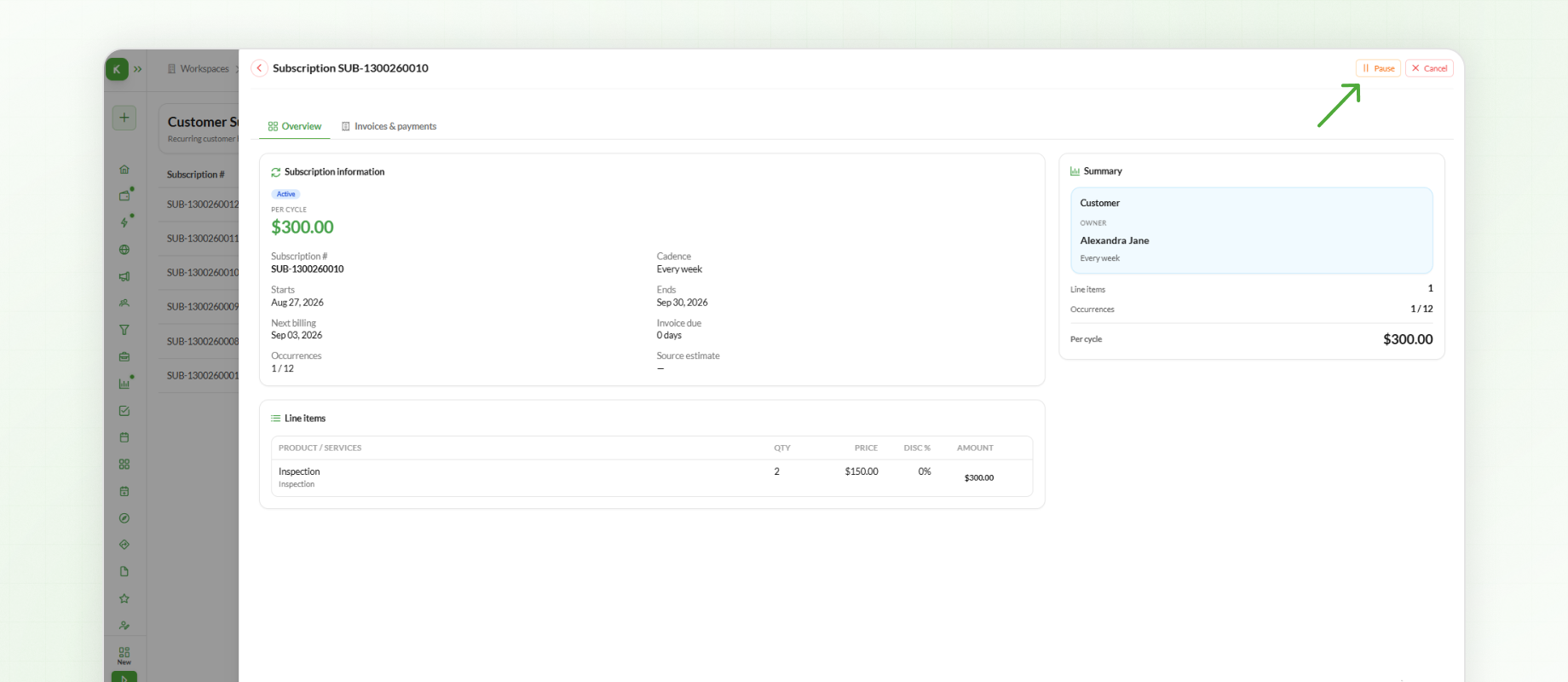
When you are ready to start billing again, you can Resume the subscription and choose the next billing date.
Past Due and Paused represent different situations. Past Due means the customer has an overdue invoice, while Paused means billing was intentionally stopped. Paying an old invoice does not automatically resume a manually paused subscription.
Cancelling a Subscription
If the subscription should no longer continue, you can cancel it from an Active, Past Due, or Paused status.
Once a subscription is cancelled:
No new invoices are created by the subscription.
Existing invoices remain in Knockio.
Existing invoices can still be paid, collected, or written off normally.
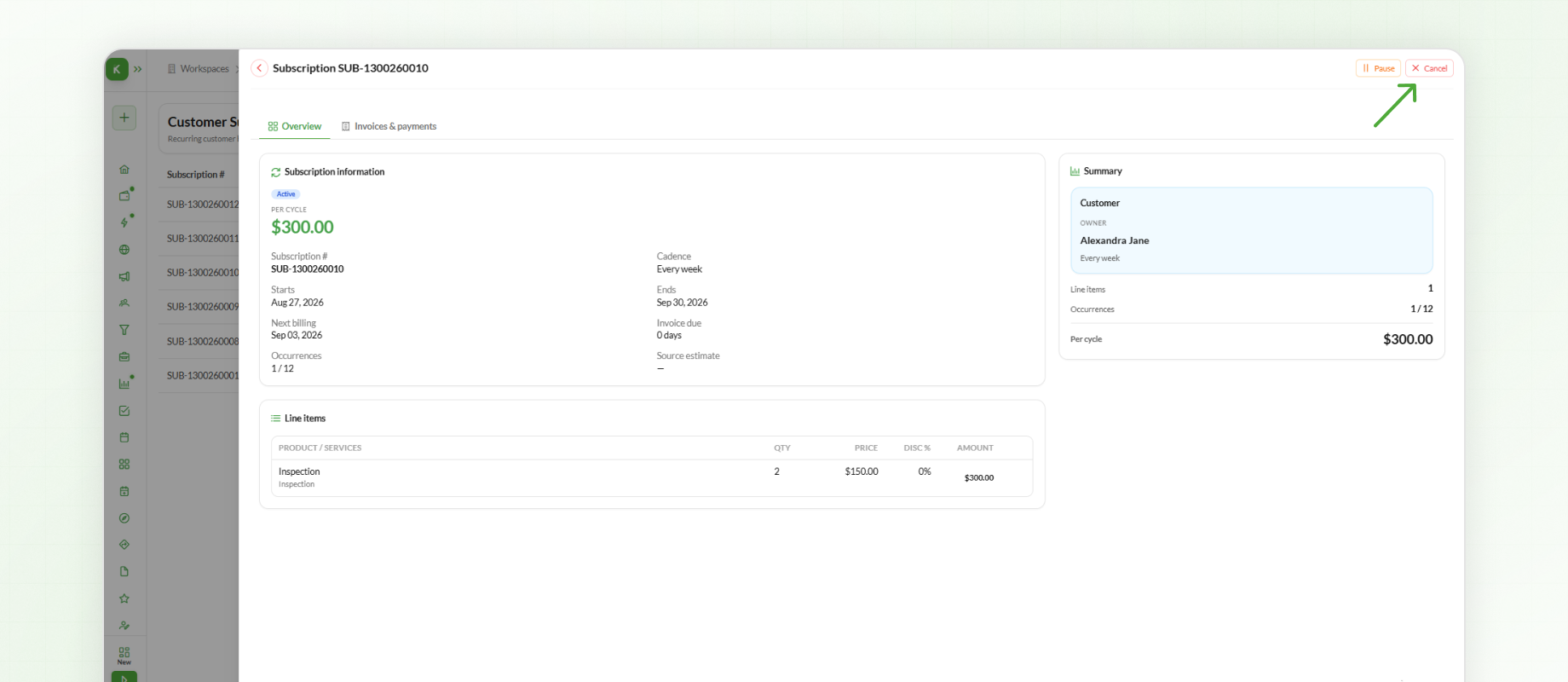
Cancelling a subscription does not delete invoices that have already been created.
Completing a Subscription
Some subscriptions are designed to end automatically.
For example, you can set a subscription to run for a specific number of billing occurrences, such as 12 monthly payments. Once the configured number of billing cycles is reached, the subscription can move to Completed.
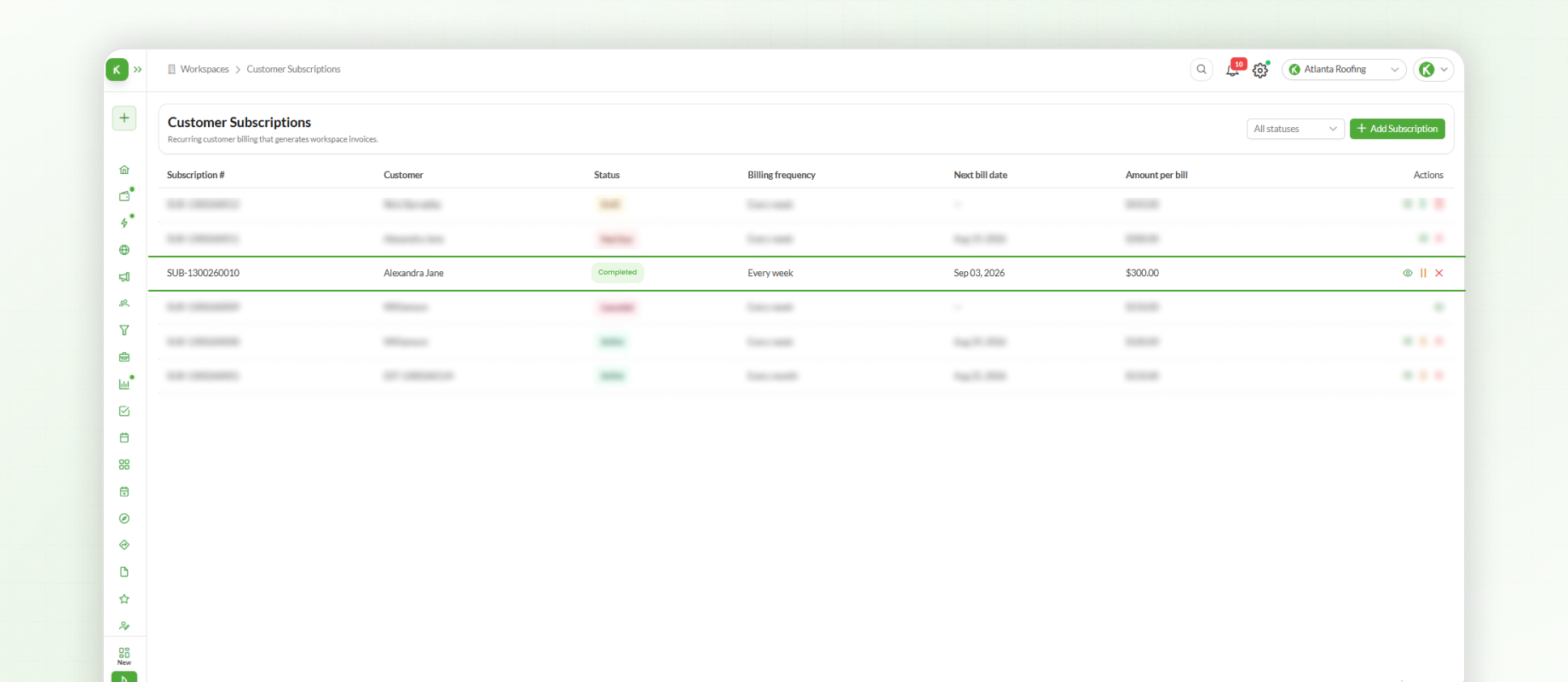
You can also set an End Date, allowing the subscription to finish when that date is reached.
Subscription Statuses
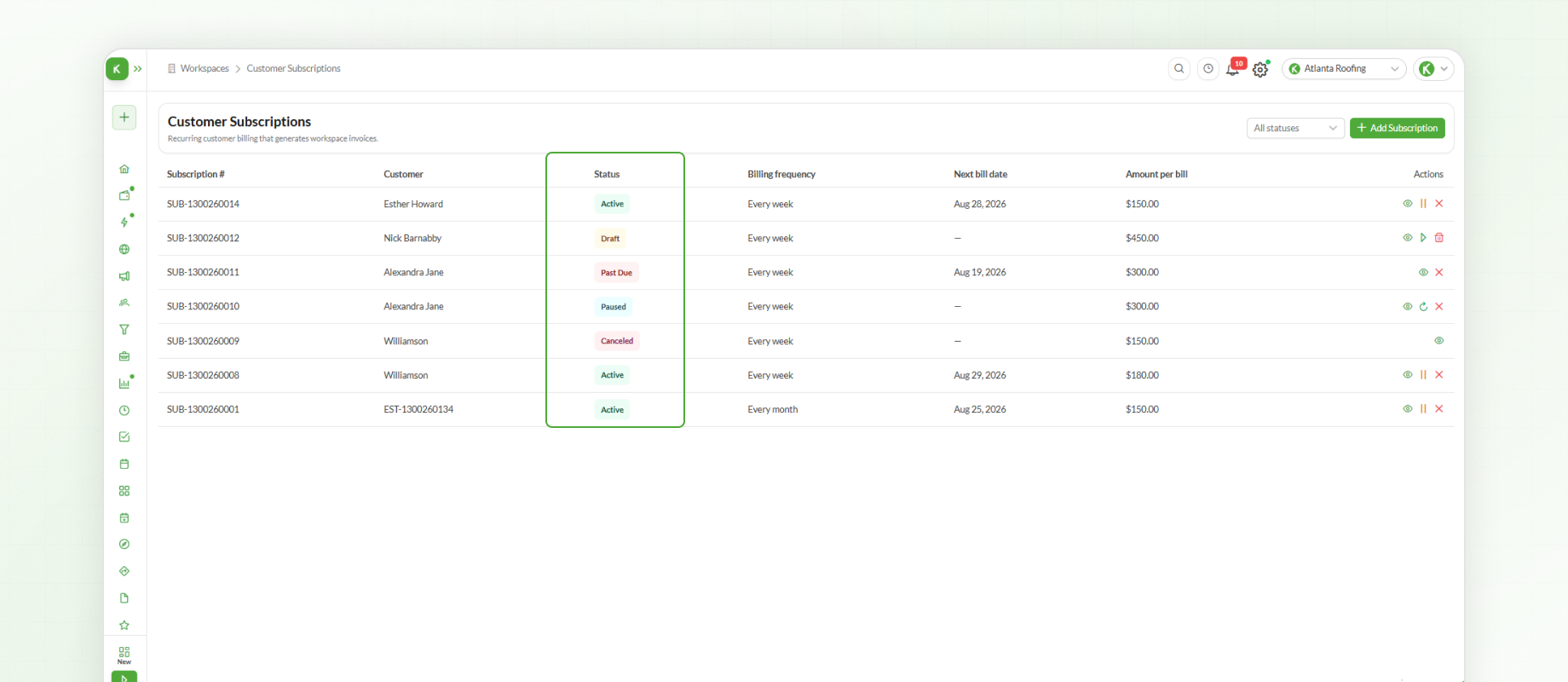
Customer Subscriptions can have different statuses depending on where they are in the billing process.
Draft – The subscription has been created but has not started billing.
Active – Billing is running and invoices are created according to the schedule.
Past Due – A subscription invoice is unpaid and past its due date.
Paused – Billing has been intentionally stopped temporarily.
Canceled – The subscription has been permanently stopped.
Completed – The subscription has finished because its billing limit or end date was reached.
Handling Failed Billing Cycles
A billing cycle can fail if Knockio cannot create the required invoice.
For example, an invoice may not be generated if the lead does not have a required Primary Contact.
When this happens:
The billing cycle is recorded as Failed.
No invalid invoice is created.
The underlying issue can be fixed.
The billing cycle can then be retried.
Finding Subscription Invoices
Every invoice created by a subscription remains a normal Knockio invoice.
You can also view the invoices associated with a subscription through its invoice history. This provides a record of the customer's recurring billing activity, including paid and past-due invoices.
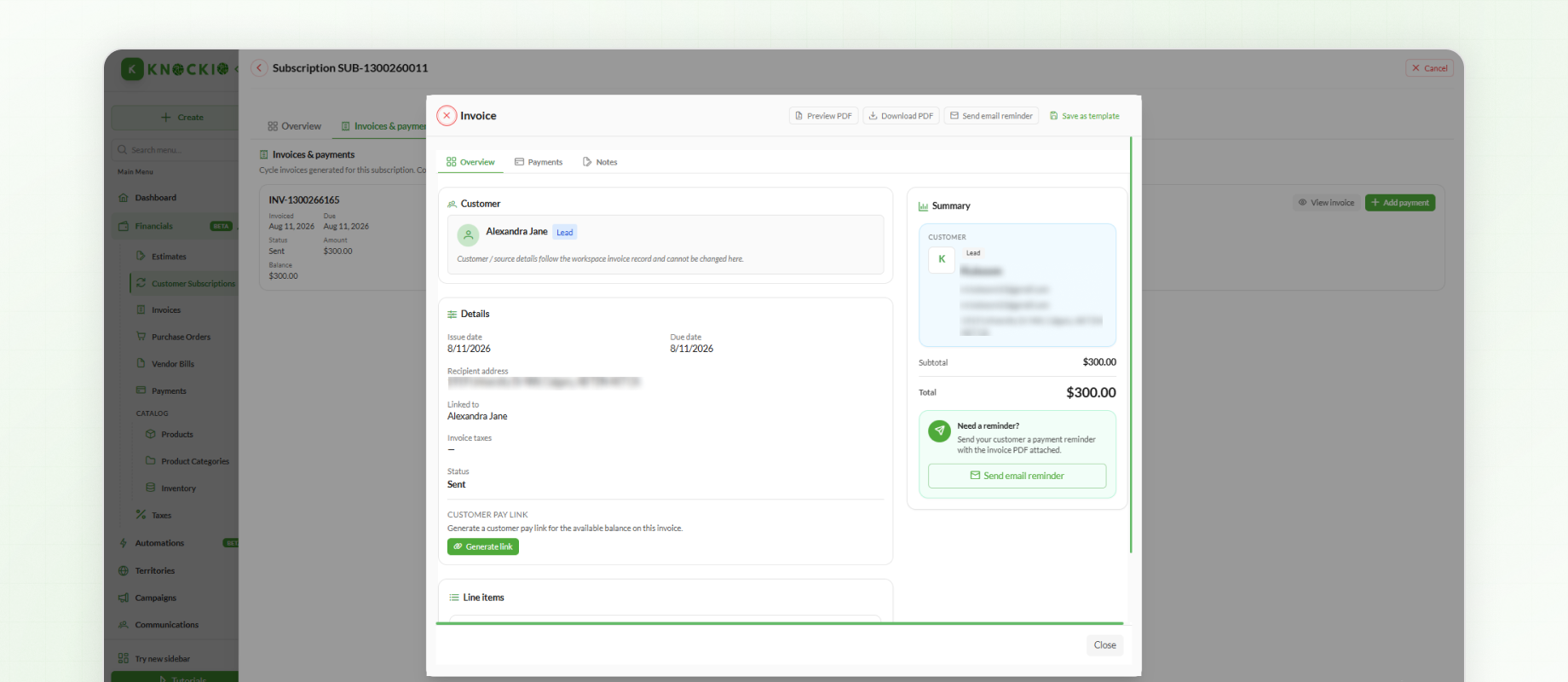
The subscription controls when invoices are created, while the invoice manages the actual bill and payment.
Recurring and One-Time Charges
Subscriptions are intended for recurring services.
For example, an accepted estimate might include:
Installation – $2,000 – One-time
Monitoring – $200/month – Recurring
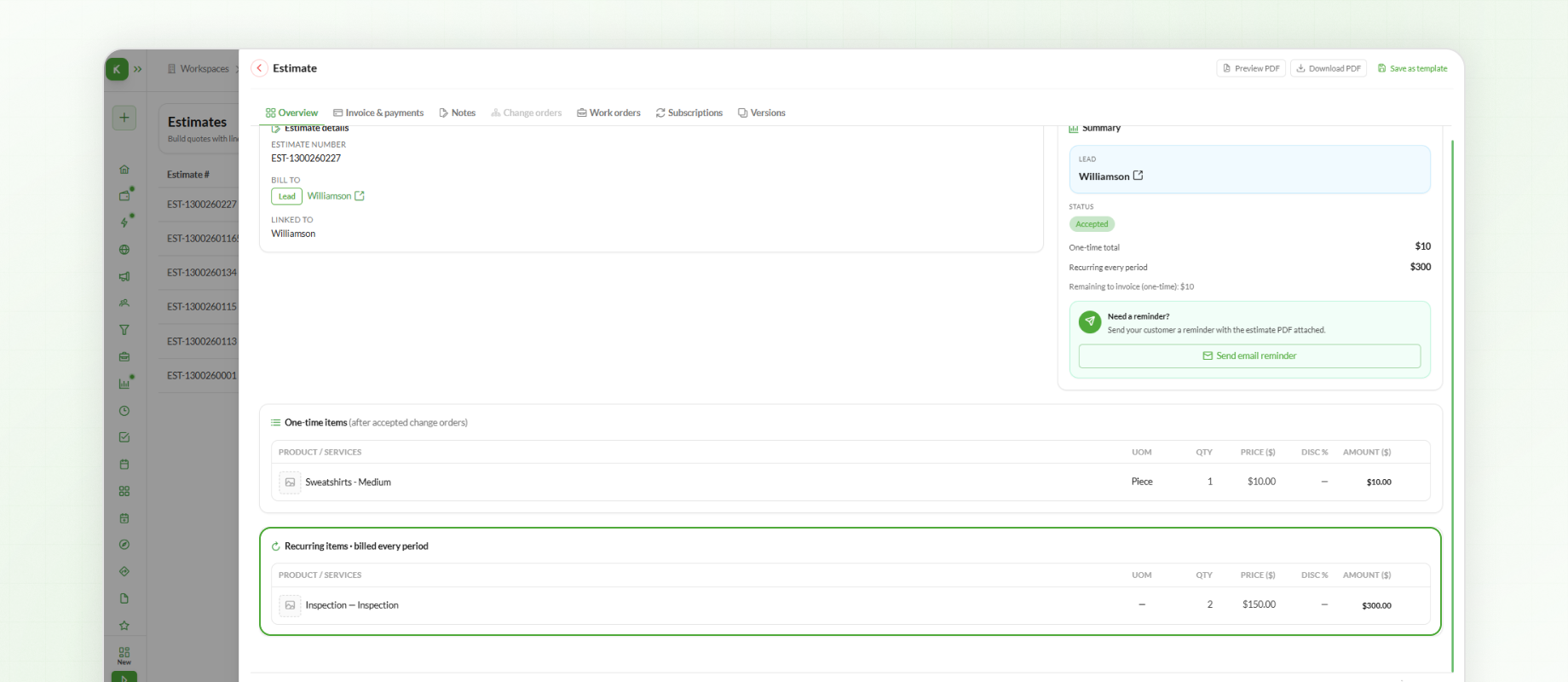
The installation remains part of the normal estimate and invoice workflow, while the recurring monitoring service becomes part of the subscription.
One-time estimate items do not become recurring subscription charges, and changes or change orders to one-time work do not automatically modify an active subscription.
Subscription Limitations
The first version of Customer Subscriptions focuses on straightforward recurring billing.
The following are not currently part of the subscription workflow:
Automatic card-on-file billing – Subscription invoices are created as Sent so they can be connected to normal payment and collection workflows.
Mid-subscription price changes – A full workflow for changing recurring prices is not included.
Change orders for recurring services – Change orders remain part of the normal one-time estimate workflow and do not automatically modify an active subscription.
Next Steps
You have now learned how to create and manage Customer Subscriptions in Knockio, including setting up recurring billing, handling subscription invoices and payments, and managing subscriptions as their status changes.
The basic workflow is simple:
Create → Activate → Invoice → Collect → Repeat
Once a subscription is created, Knockio handles the recurring invoice schedule until the subscription is paused, cancelled, or completed.