
Managing Boards
Track lead progress with customizable workflow boards
Table of Contents
Overview
Boards provide a structured way to organize leads as they progress through different stages of your workflow. They help departments collaborate while maintaining visibility into the current status of every lead.
Each board represents a workflow for a specific team or department, allowing leads to move seamlessly from one stage to another without creating duplicate records.
This article explains how to create boards, configure stages, organize workflows, and manage leads within boards.
Accessing the Boards Module
To create or manage boards:
Select Boards from the left-hand navigation menu.
The Boards module displays all existing boards within the workspace.
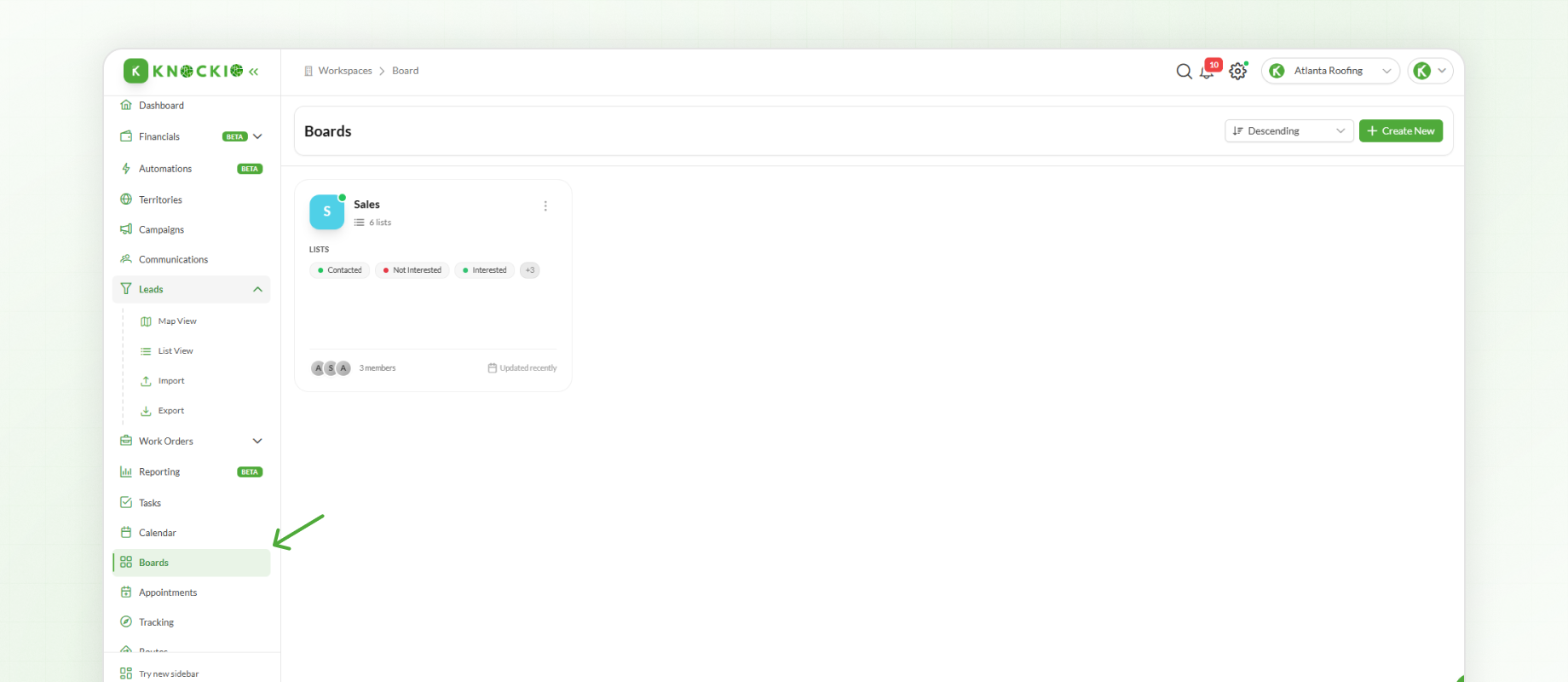
Each board can represent a different workflow, such as:
Sales
Operations
Production
Customer Success
Any workflow that matches your organization's business processes
Creating a New Board
To create a new board:
Click Create New.
Enter a Board Name. For example, Sales.
Select the Assignees that should have access to the board.
Choose a colour to help distinguish the board from others within the workspace.
Only users assigned to the selected roles can access and work within the board.
Adding Stages
A board consists of one or more stages that represent each step of your workflow.
Examples include:
New Lead
Interested
Site Visit Scheduled
Approved
To add a stage:
Click Add List.
Select the Status that should be associated with the stage.
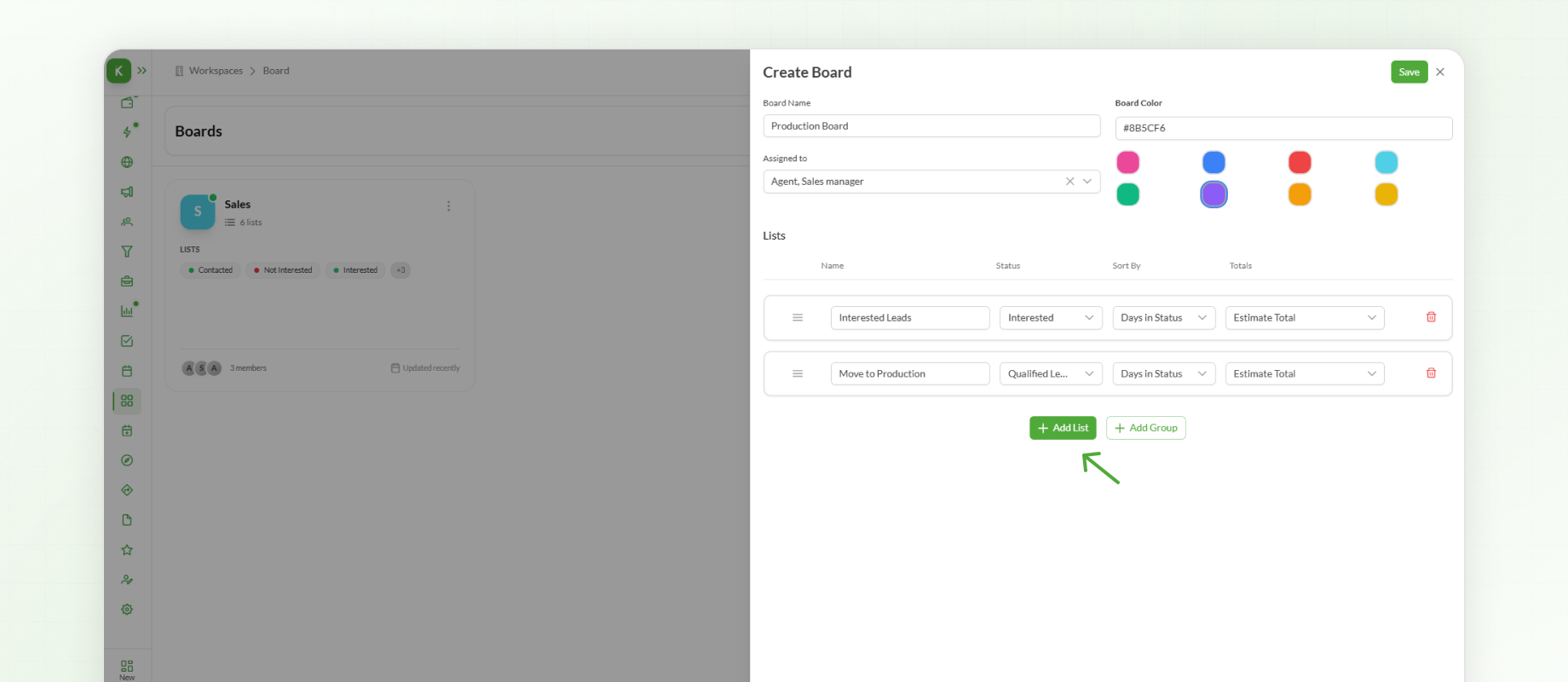
Since board stages are linked directly to statuses, lead progression remains consistent throughout the workspace.
Optionally, a stage can be given a different display name to improve readability while maintaining its association with the underlying status.
Repeat this process until all required workflow stages have been added, then save the board.
Organizing Stages with Groups
As workflows become more complex, stages can be organized into groups.
To create a group:
Click Add Group.
Enter a group name.
Save the group.
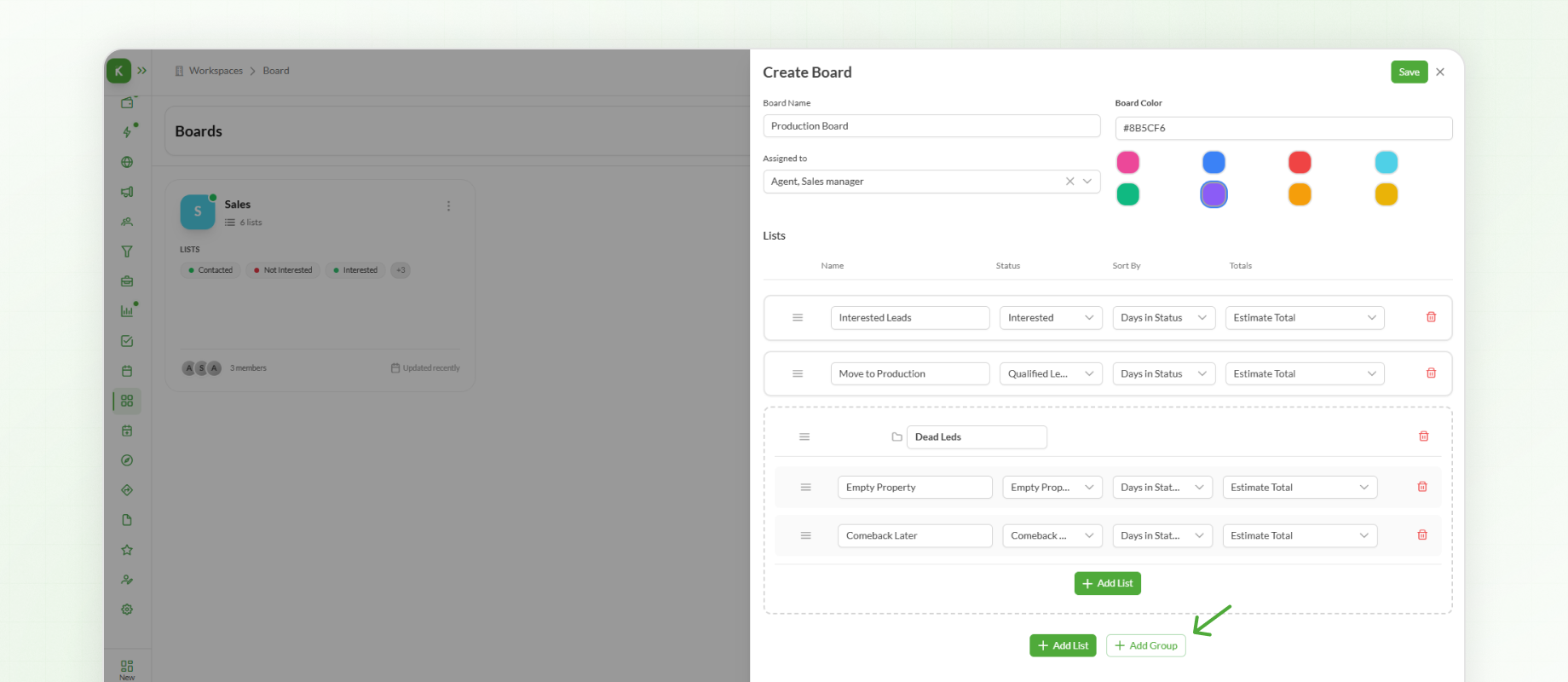
Existing stages can then be dragged into the group, or new stages can be added directly within it.
Groups improve the organization of larger workflows without affecting how leads move between stages.
How Leads Appear in Boards
Boards update automatically based on a lead's status.
Whenever a lead is created using a status that has been linked to a board, Knockio automatically places that lead into the corresponding stage.
For example, if a lead is created with the Interested status and that status is associated with the Sales board, the lead immediately appears in the Interested stage.
No manual assignment is required.
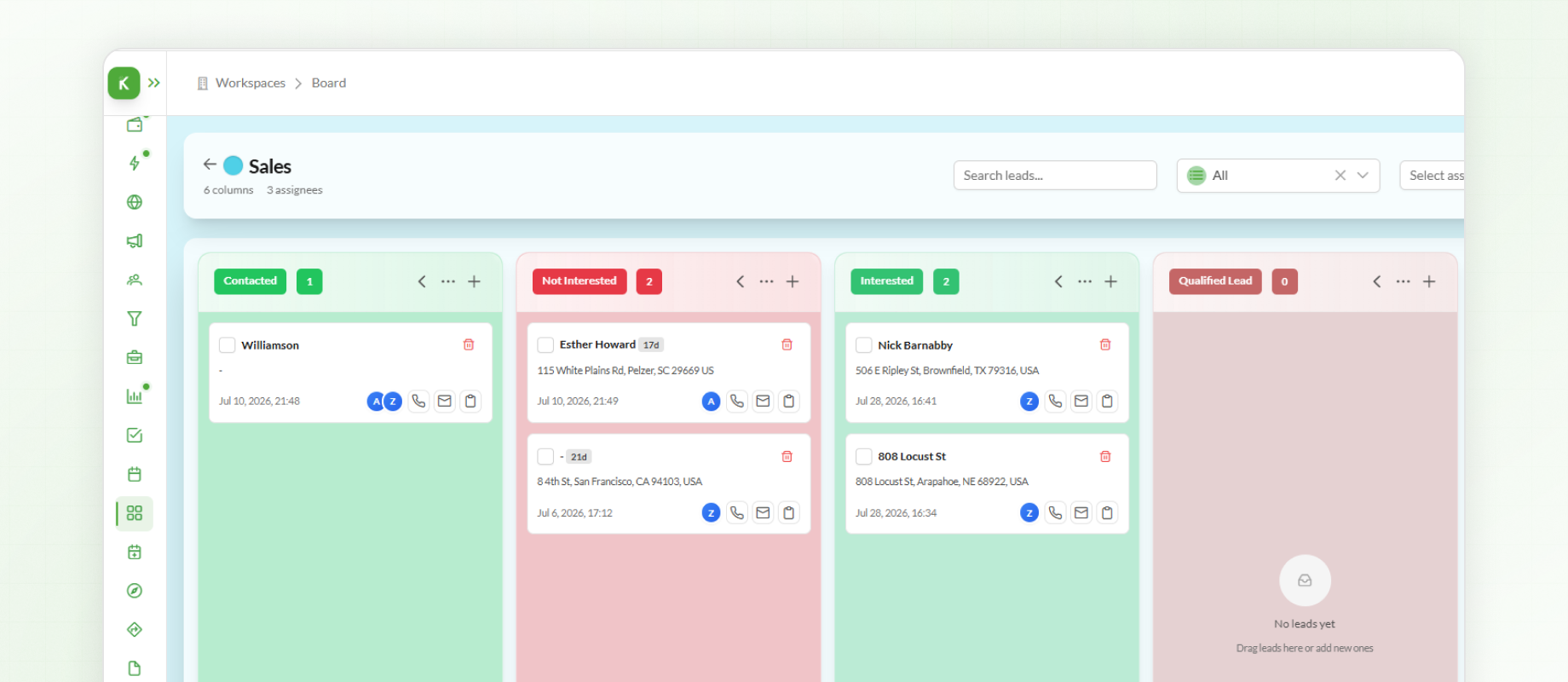
Leads can also be created directly from within a board.
To create a lead from a board:
Click the plus (+) icon within the desired stage.
Complete the required lead information.
Save the lead.
Because the lead is created from within a specific stage, the corresponding status is assigned automatically.
Moving Leads Through the Workflow
As work progresses, leads can be moved from one stage to another using drag-and-drop.
When a lead is moved, Knockio automatically updates the lead's status to match its new stage.
This allows different departments to collaborate while continuing to work on the same lead.
For example:
A lead may begin in the Sales board.
Once it reaches a shared status, it can automatically appear in the Operations board.
After operational work is completed, it can continue into the Production board using another shared stage.
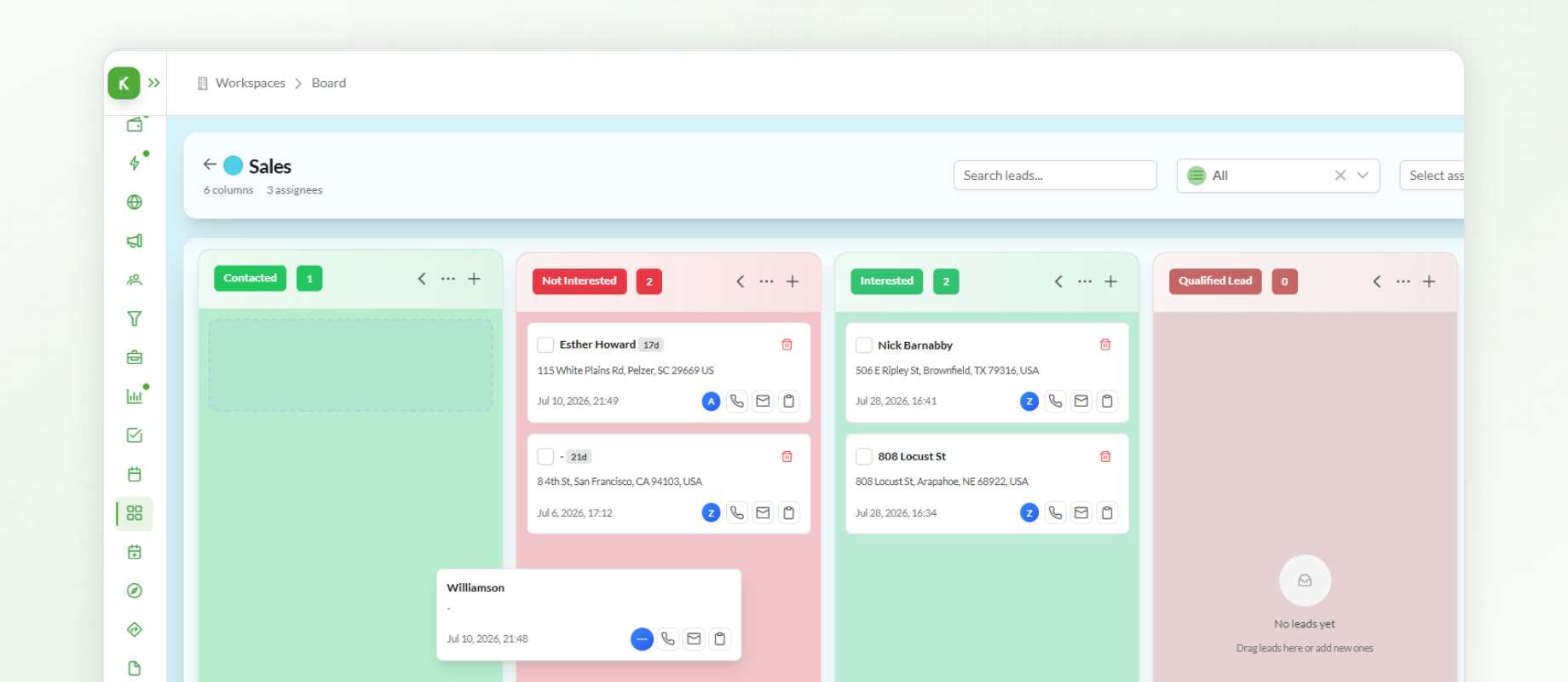
Throughout the process, every department works on the same lead record, ensuring information remains centralized and eliminating duplicate entries.
Benefits of Boards
Boards provide a clear visual representation of work while keeping departments aligned throughout the lead lifecycle.
Instead of manually tracking ownership or determining the next step in a process, workflows are managed automatically through statuses and board stages.
Whether managing sales, installations, inspections, production, or customer success, Boards provide a structured and collaborative way to monitor progress across the organization.
Next Steps
After configuring Boards, the next step is managing Tasks. Tasks help organize follow-ups, assign responsibilities, and ensure important work is completed on time across your workspace.