
Managing Appointments
Manage appointments and keep your team's schedule organized.
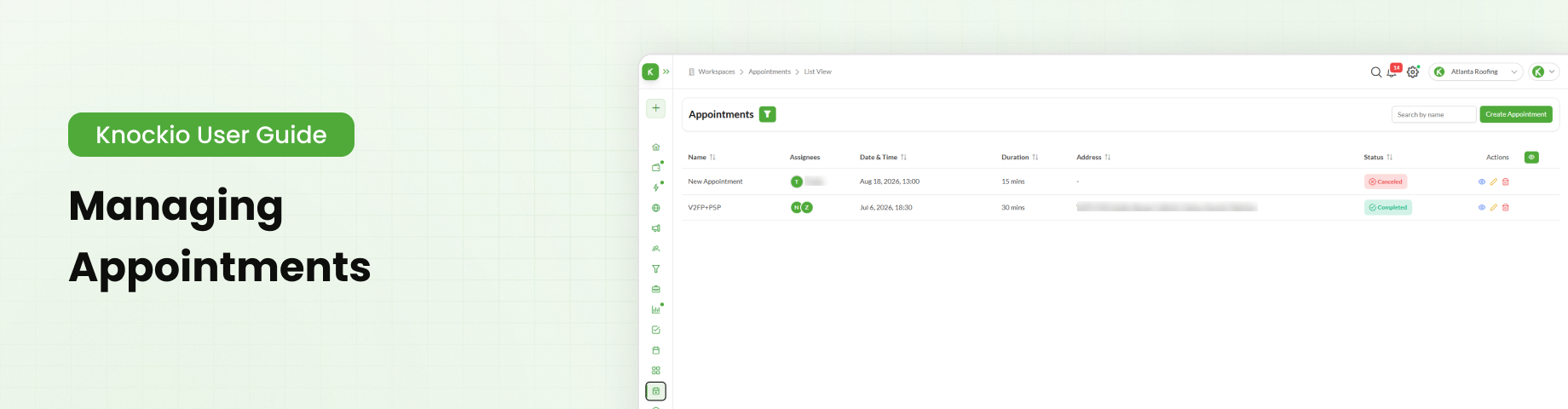
Table of Contents
Overview
The Appointments module allows you to schedule and manage meetings, site visits, inspections, follow-ups, and other customer interactions. It provides both Calendar View and List View, allowing users to manage appointments using the interface that best suits their workflow.
This article explains how to create appointments, navigate the available views, and manage scheduled bookings.
Accessing the Appointments Module
To create or manage appointments:
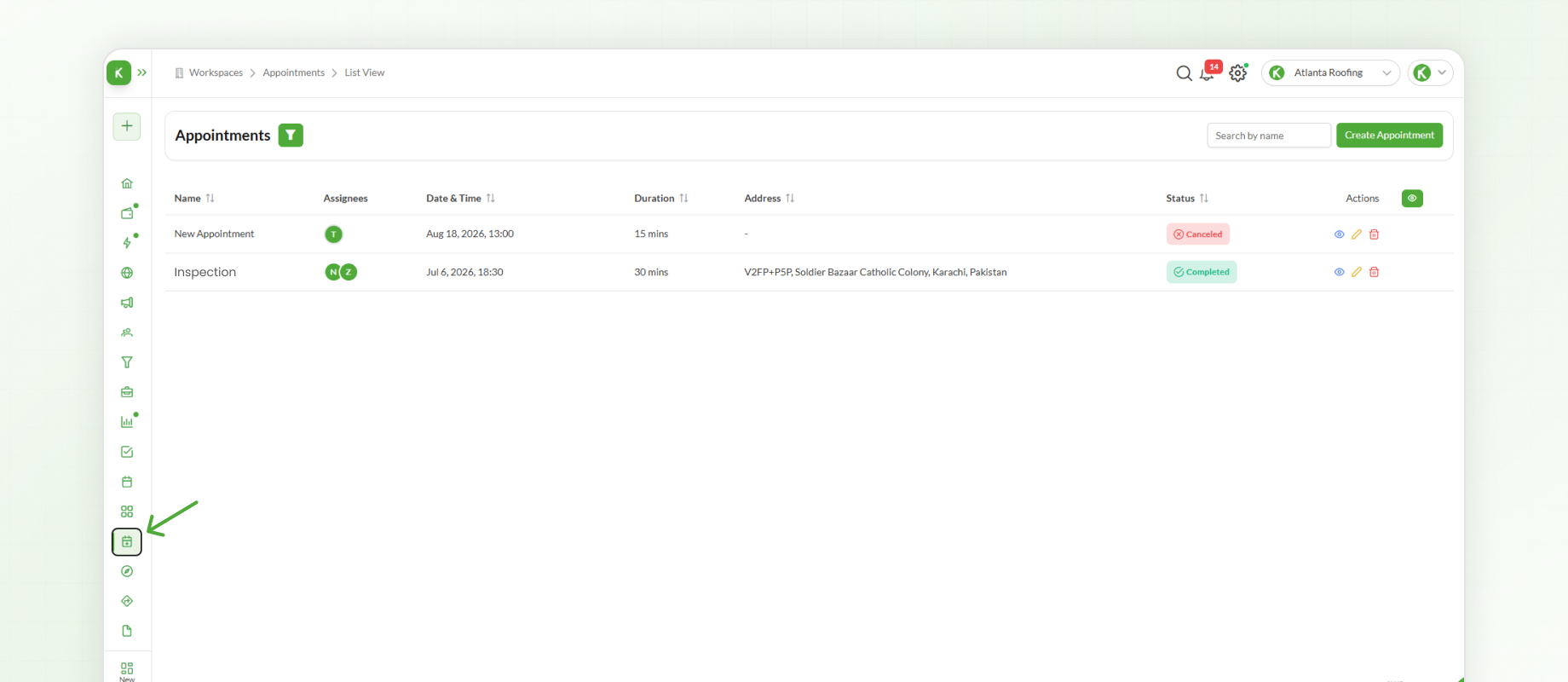
Select Appointments from the left-hand navigation menu.
The Appointments module displays all scheduled appointments in a structured list, where you can create new appointments, review existing ones, or update appointment details whenever required.
Creating an Appointment
To create a new appointment:
Click Create Appointment.
Enter a Title.
Select a Colour to help identify the appointment.
Add the customer's contact information, including their phone number and email address, if available.
Specify the appointment Duration.
Assign one or more team members.
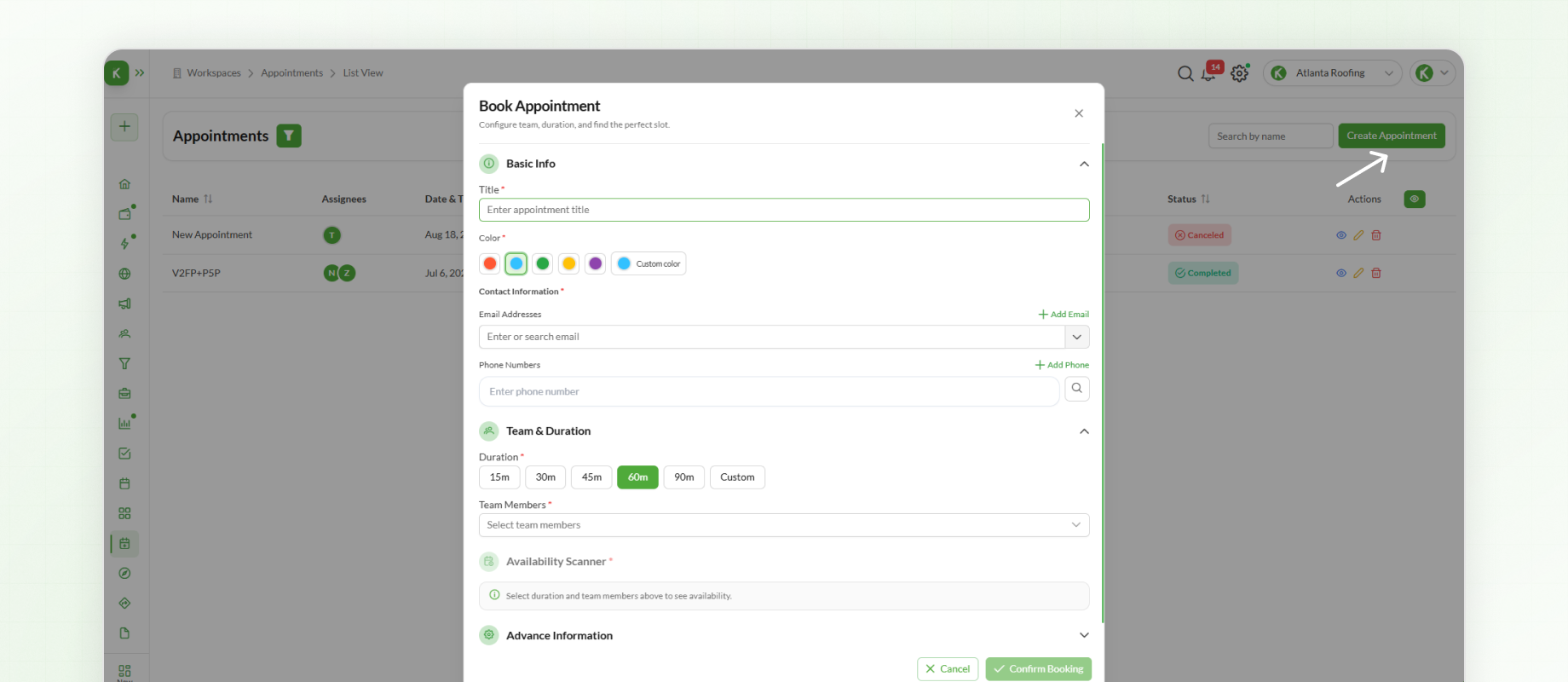
When multiple team members are assigned, Knockio automatically checks their availability and displays suitable time slots based on the selected duration.
Advanced Appointment Settings
Additional appointment options are available under Advanced Settings.
These include:
Description – Add relevant notes or instructions.
Repeat – Enable recurring appointments and define the recurrence schedule.
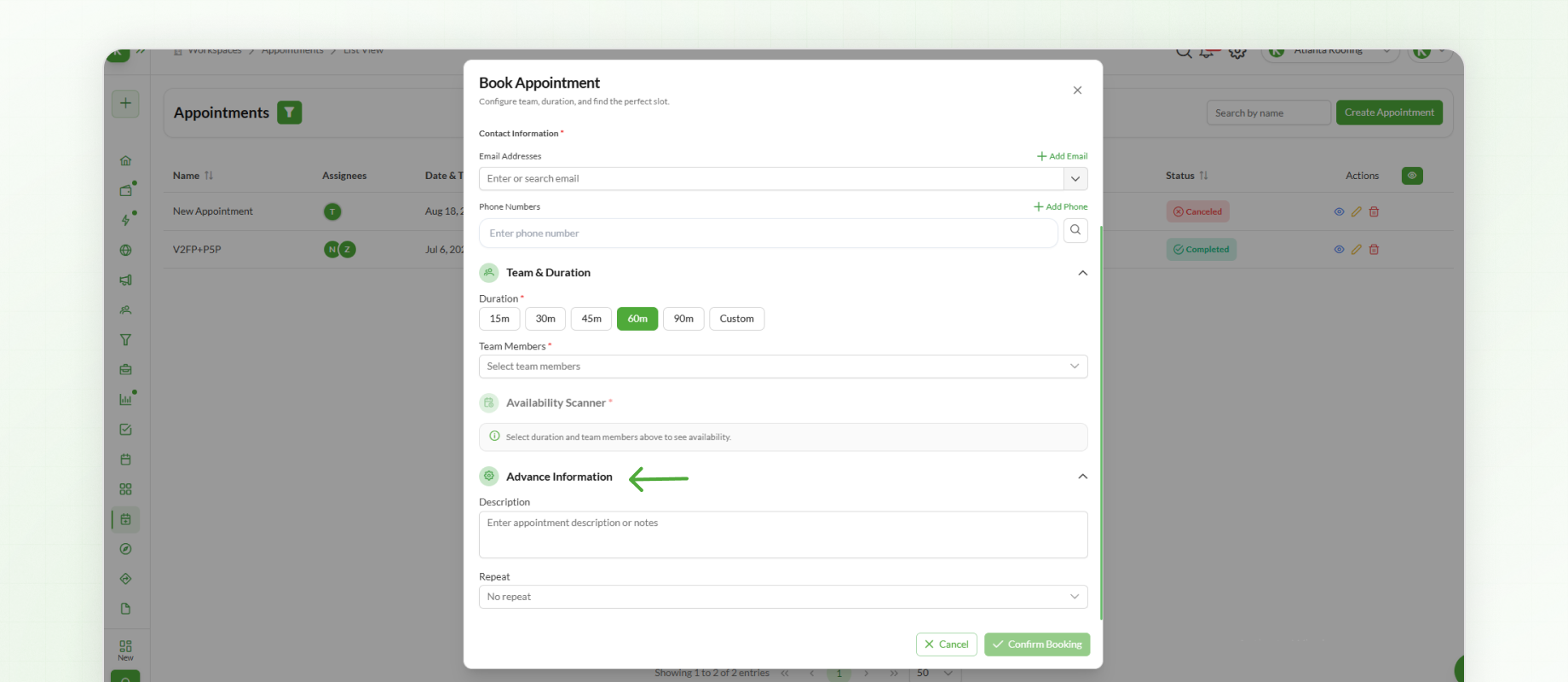
After reviewing all the details, click Confirm Booking.
The appointment is added to the Appointments module.
Managing Appointments
Existing appointments can be opened at any time to:
View appointment details.
Update appointment information.
Modify schedules.
Manage assigned team members.
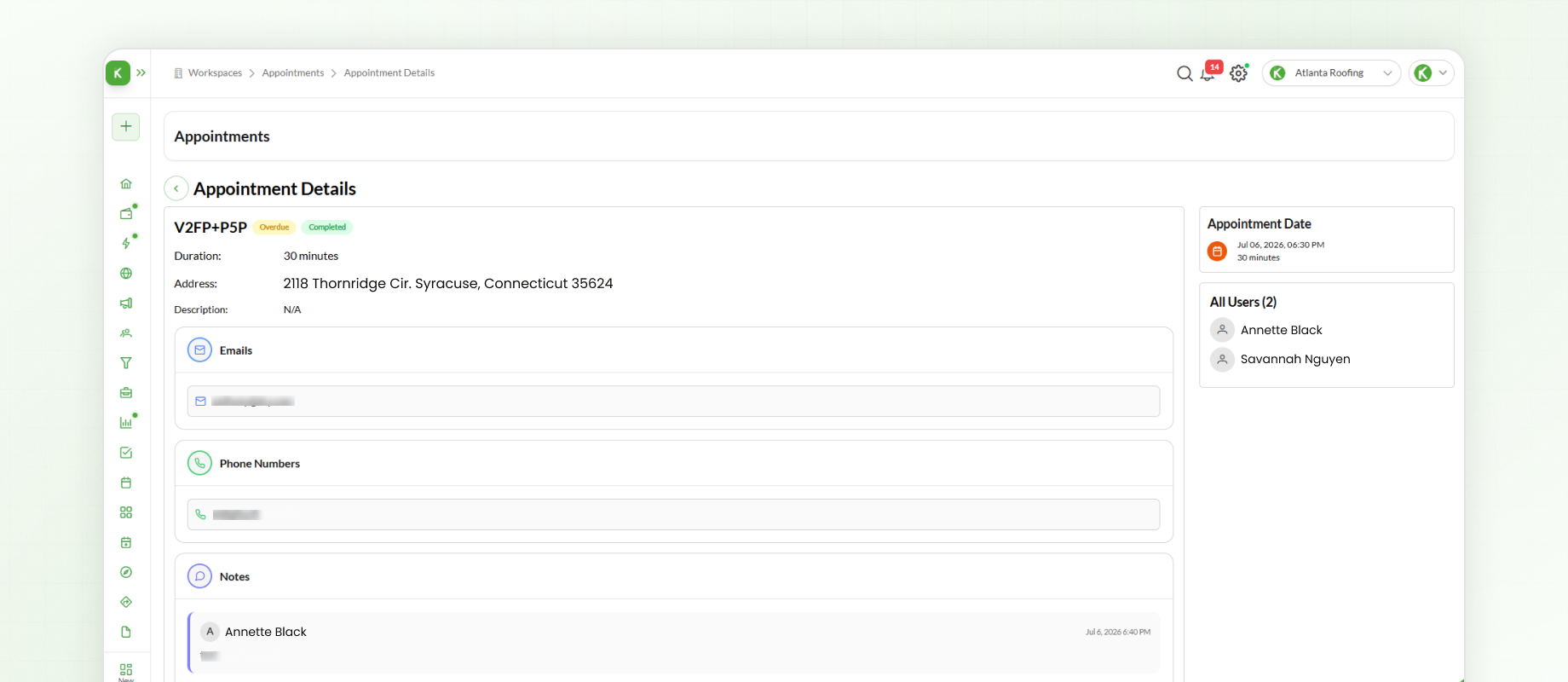
The Appointments module provides a centralized list, making it easy to search, review, and manage upcoming bookings.
Viewing the Calendar
To view appointments in a calendar layout:
Select Calendar from the left-hand navigation menu.
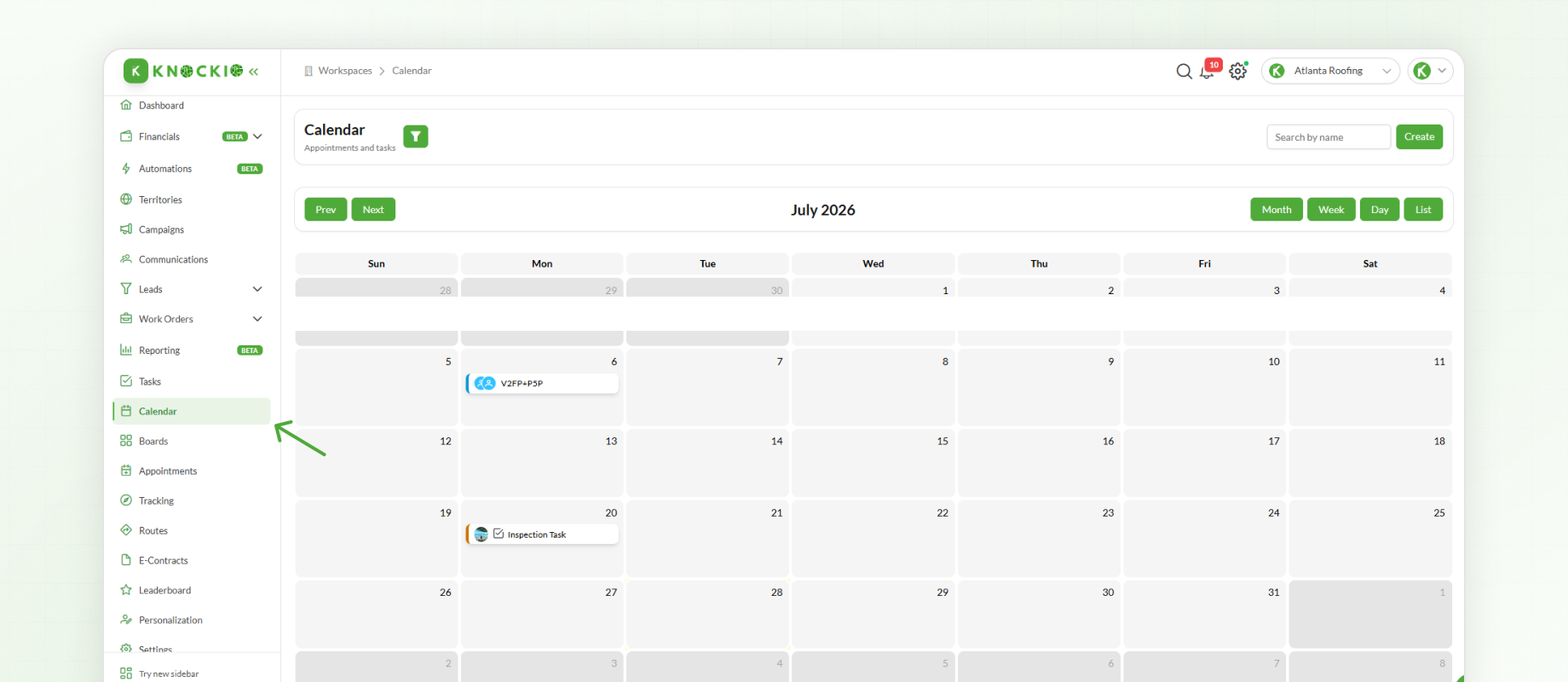
The Calendar displays all scheduled appointments and supports the following views:
Month View
Week View
Day View
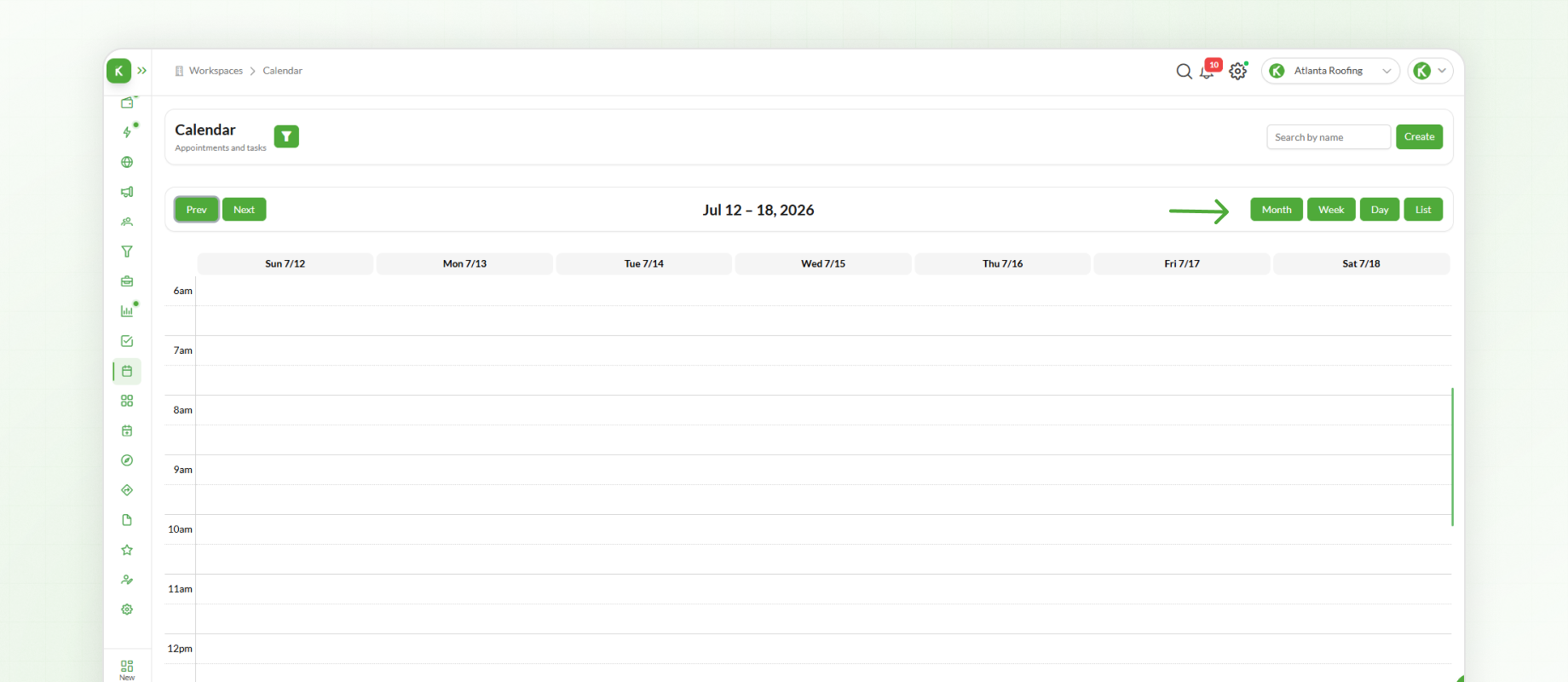
Appointments created through the Appointments module automatically appear in the Calendar, providing a visual overview of your team's schedule.
Creating an Appointment from Calendar View
You can also create appointments directly from the Calendar without returning to the Appointments module.
To create an appointment from Calendar View:
Click the desired date or time slot on the calendar.
A menu will appear with two options: Appointment and Task.
Select Appointment.
Enter the required appointment details.
Click Confirm Booking.
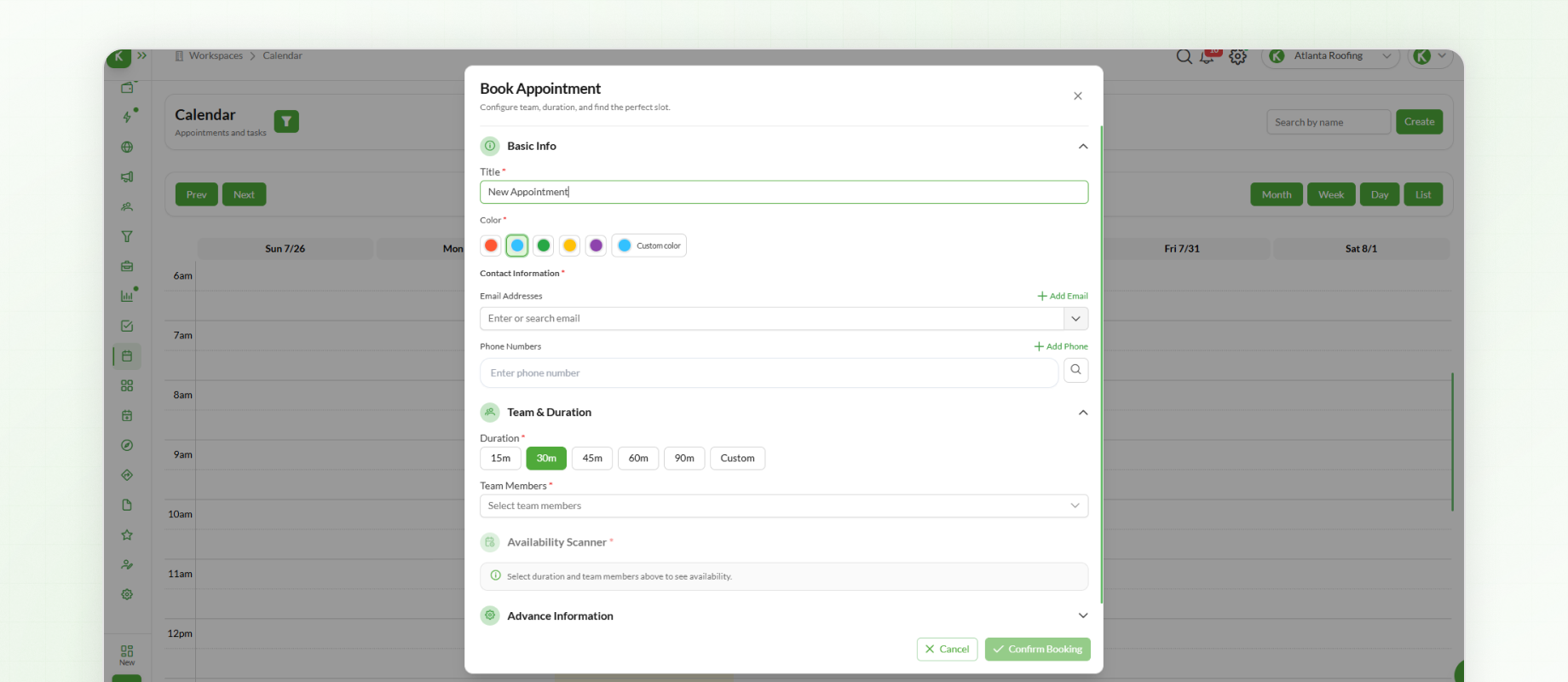
The new appointment is automatically added to the calendar and is immediately visible in the selected view.
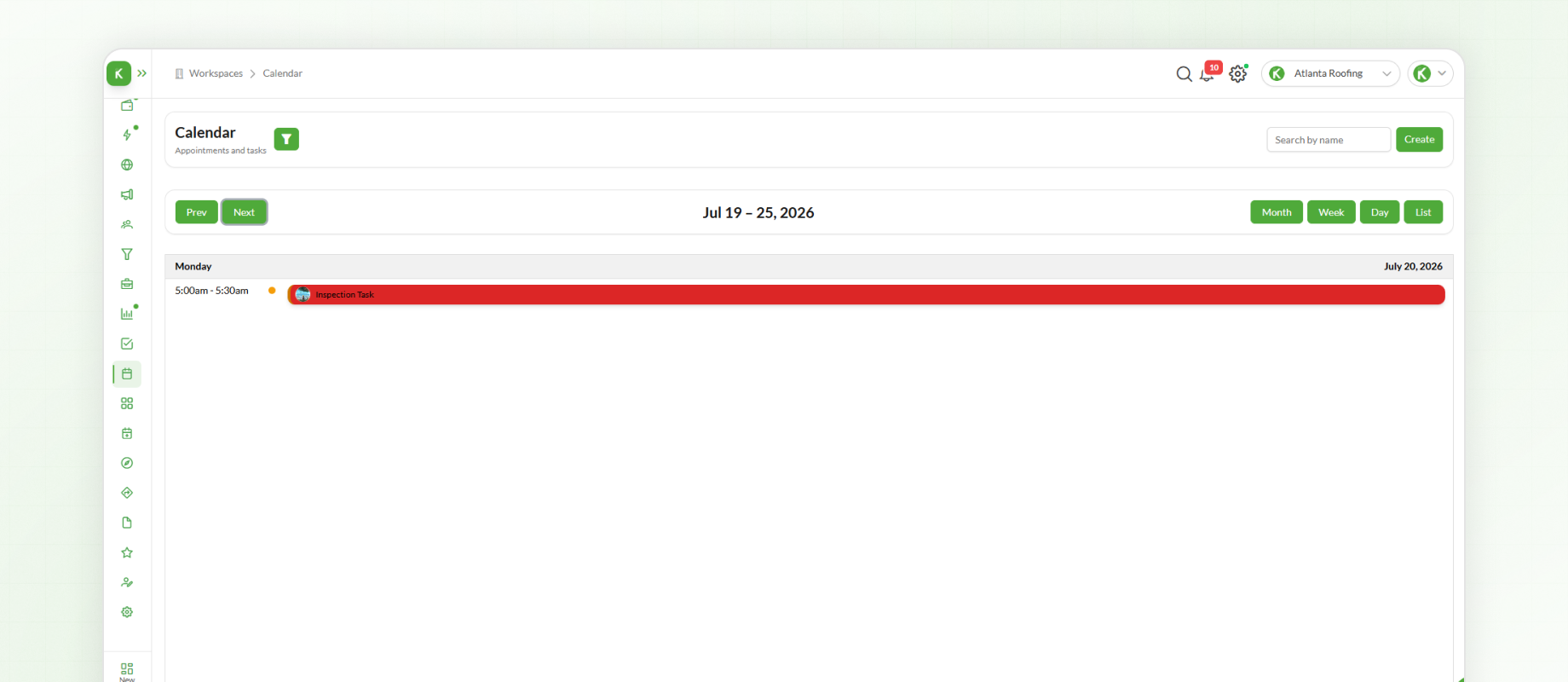
Appointments created through either the Appointments module or Calendar View appear automatically in the Calendar, providing a visual overview of your team's schedule.
Next Steps
After learning how to schedule and manage appointments, the next step is working with Work Orders. The Work Orders module helps organize projects, assign work to team members, manage project details, and track progress from planning through completion